Captcha Configuration
The admin can enable the Google reCAPTCHA feature by selecting one of the pre-integrated services offered by the marketplace.
This reCAPTCHA is applicable only for the admin interface.
Configuring Captcha
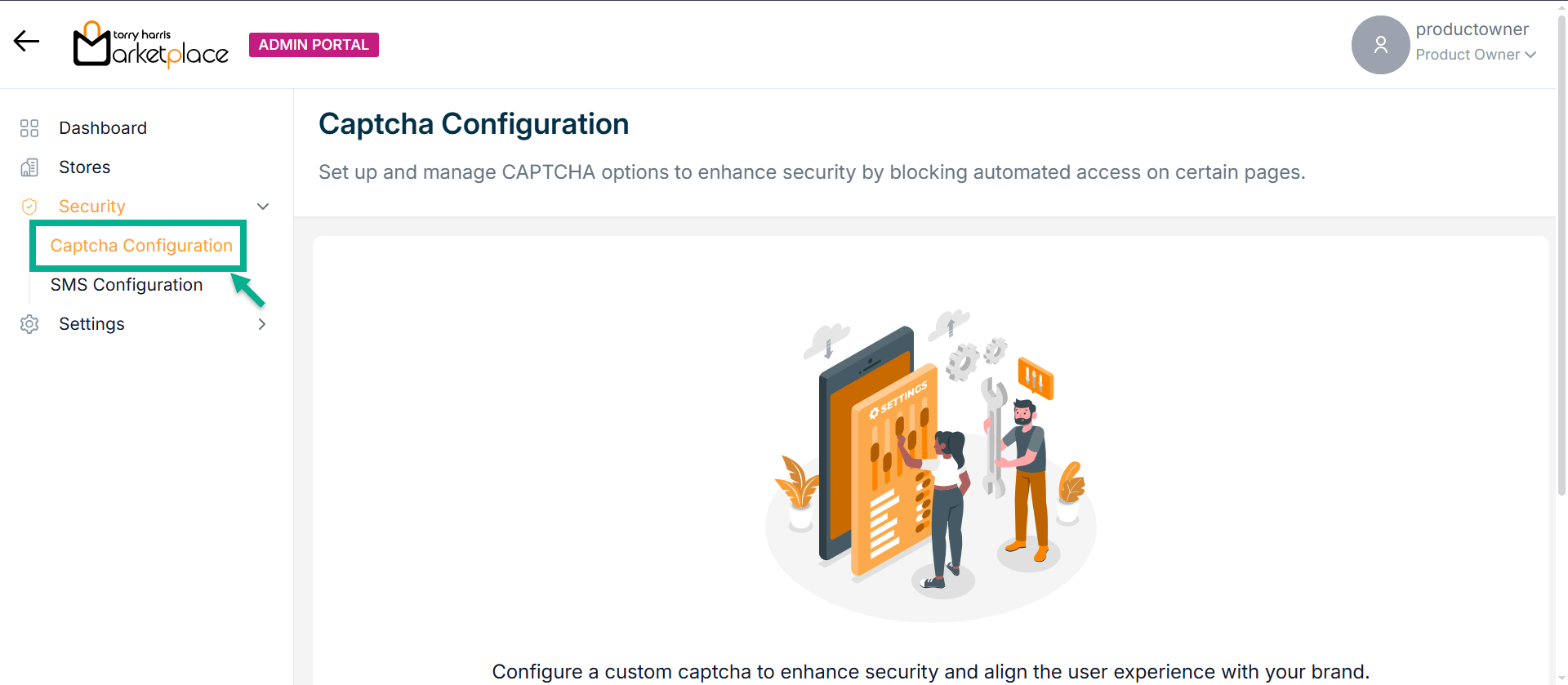
- Click Configuration Captcha.
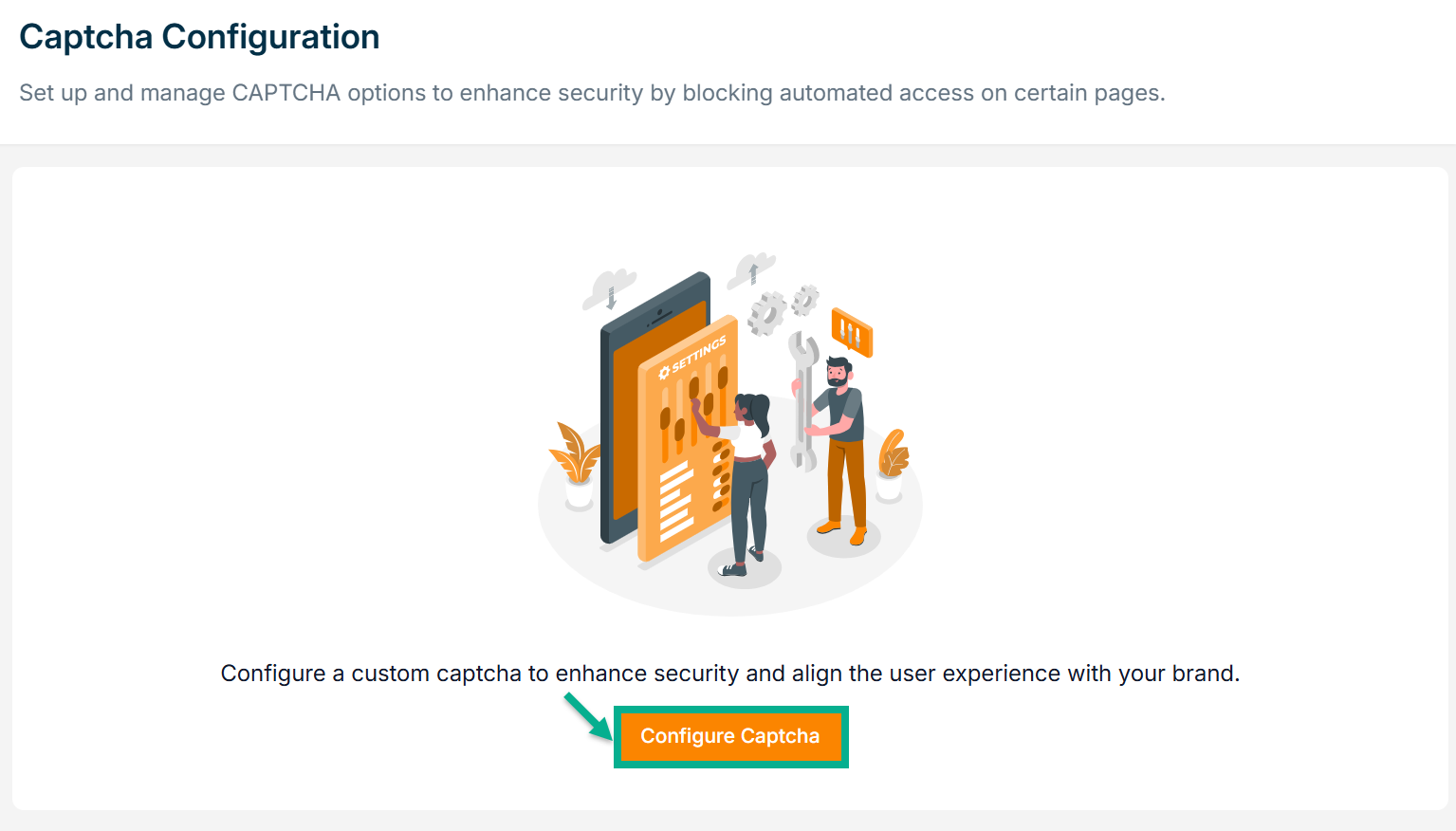
The Captcha Configuration screen appears as shown below.
-
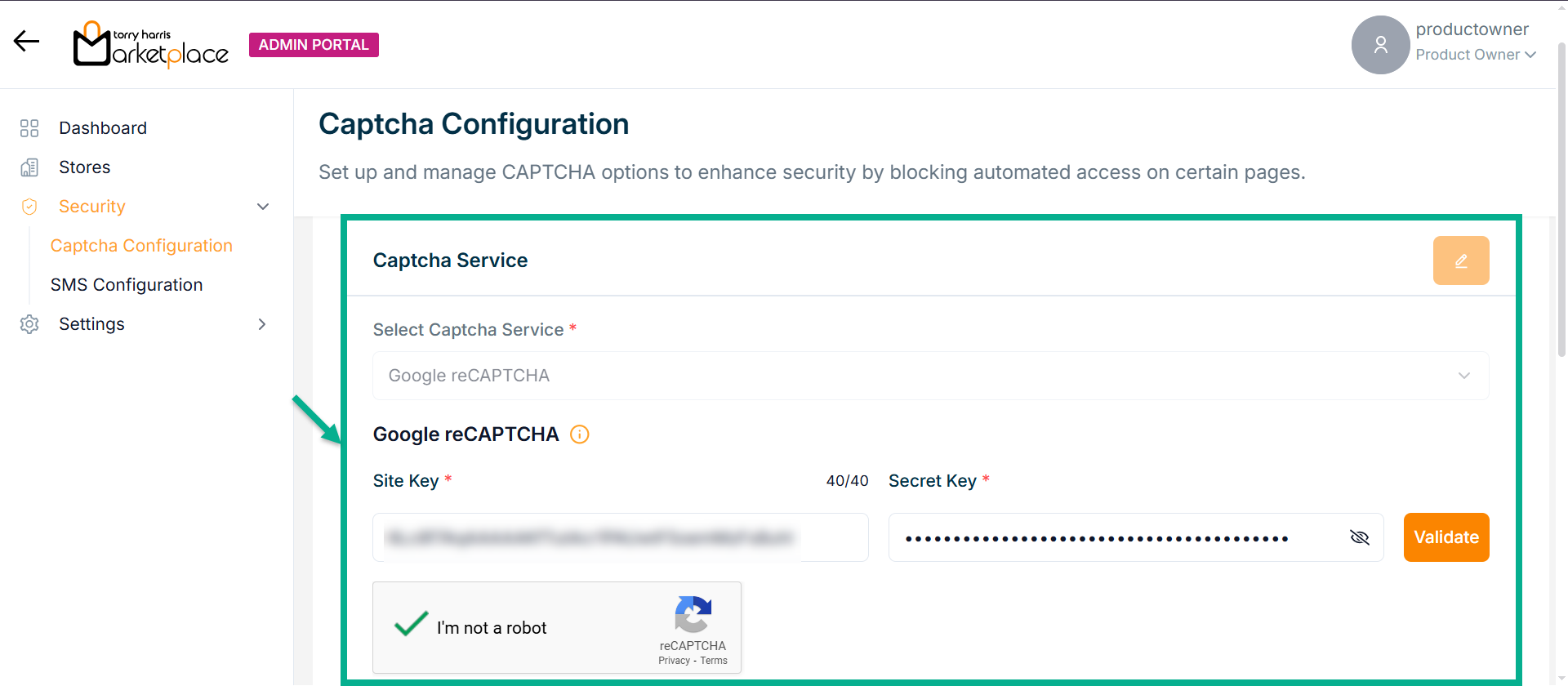
By default, Google reCAPTCHA is selected as the Captcha Service.
-
Enter Site Key and Secret Key.
-
Check the reCAPTCHA checkbox.
After clicking the reCAPTCHA checkbox, a verification screen appears where you need to complete the challenge correctly to validate.
- Click on Validate.
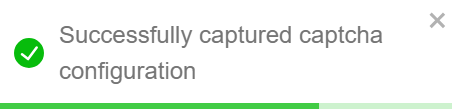
Upon validating, the confirmation message appears as shown below.
After configuring the Captcha Service, configure the Screen-Specific Captcha Configuration if necessary.
- Enable the checkbox for any Specific Screen.
For instance: If the user enable for login page of username with password
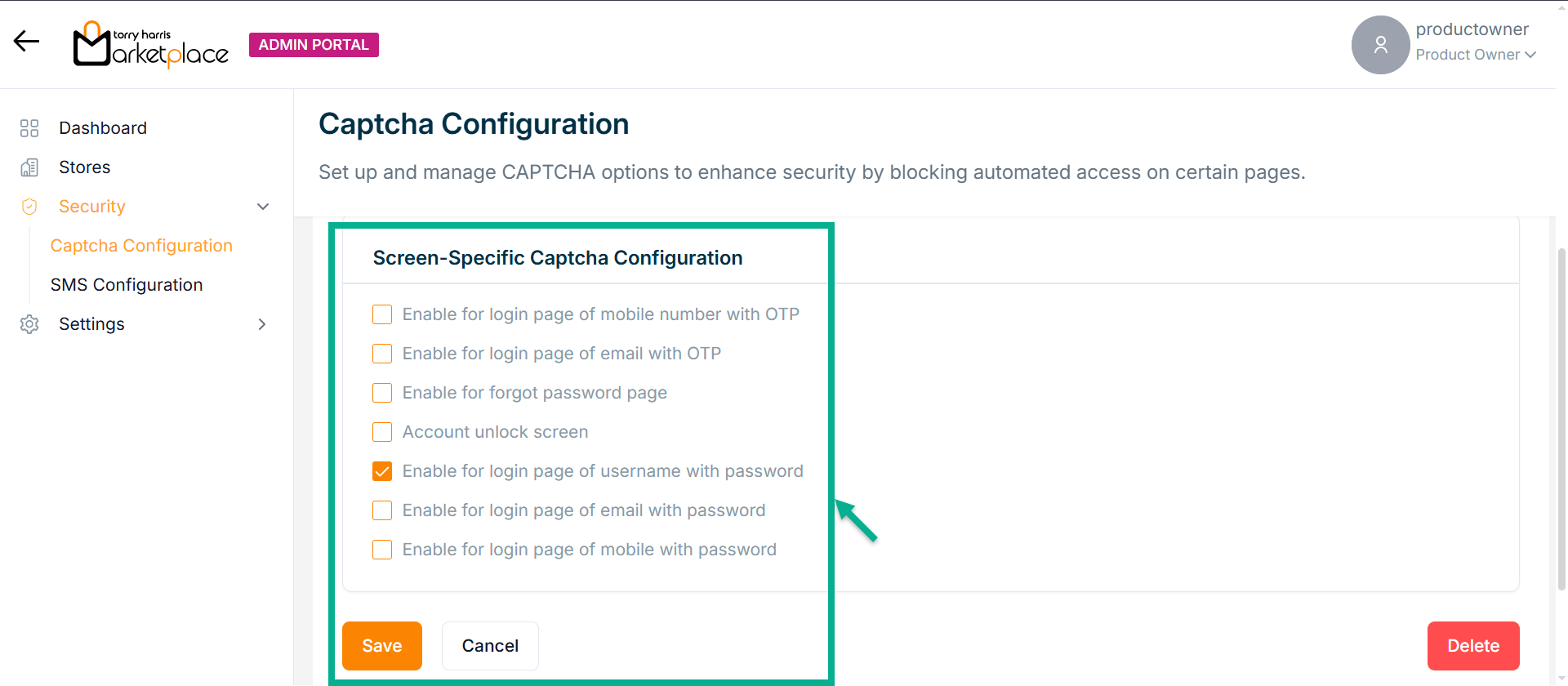
- Click Save.
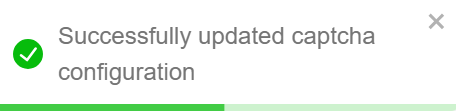
Upon saving, the confirmation message appears as shown below.
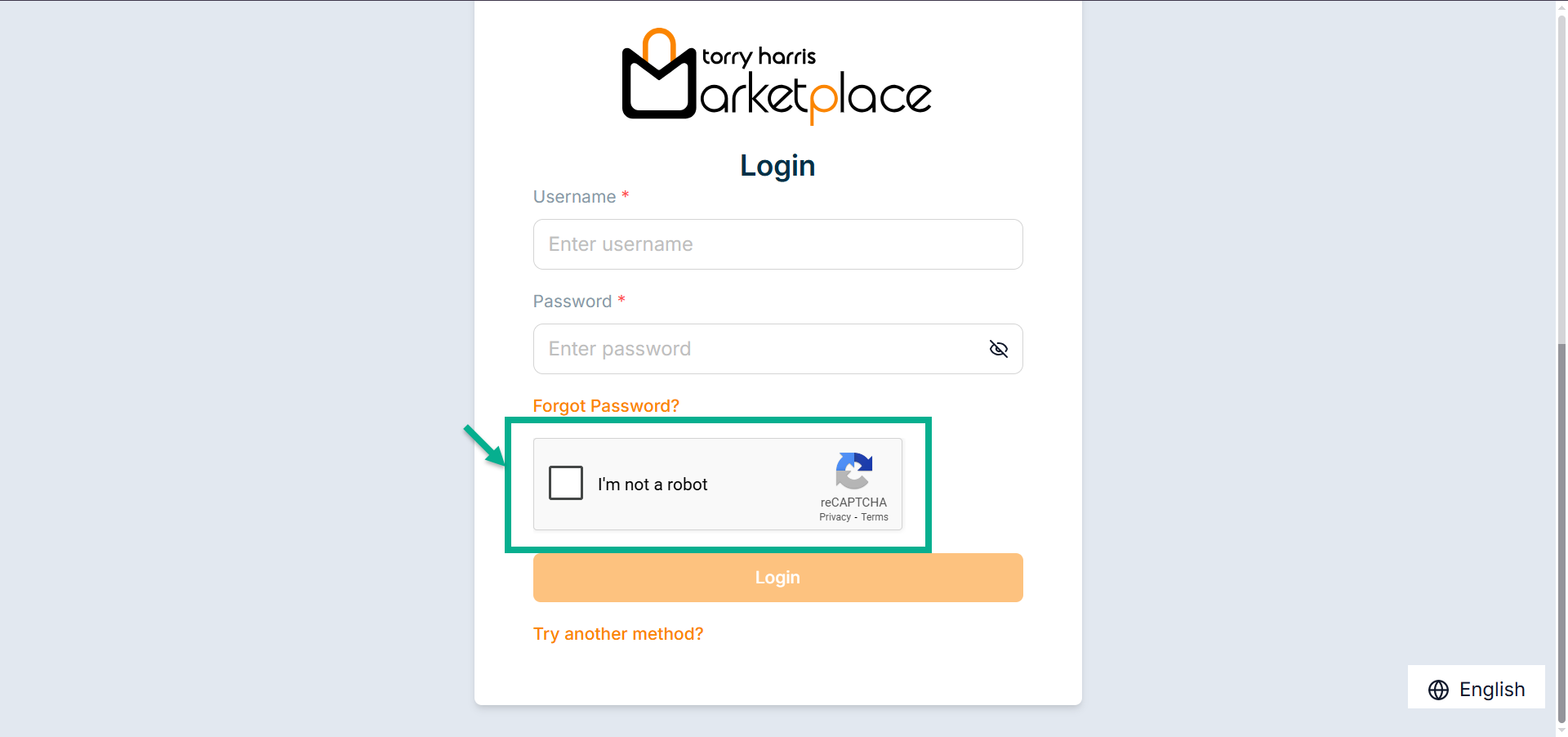
- Go to the login page of Admin Portal
The screen appears as shown below with the reCAPTCHA.
Updating Captcha
- Click Edit.
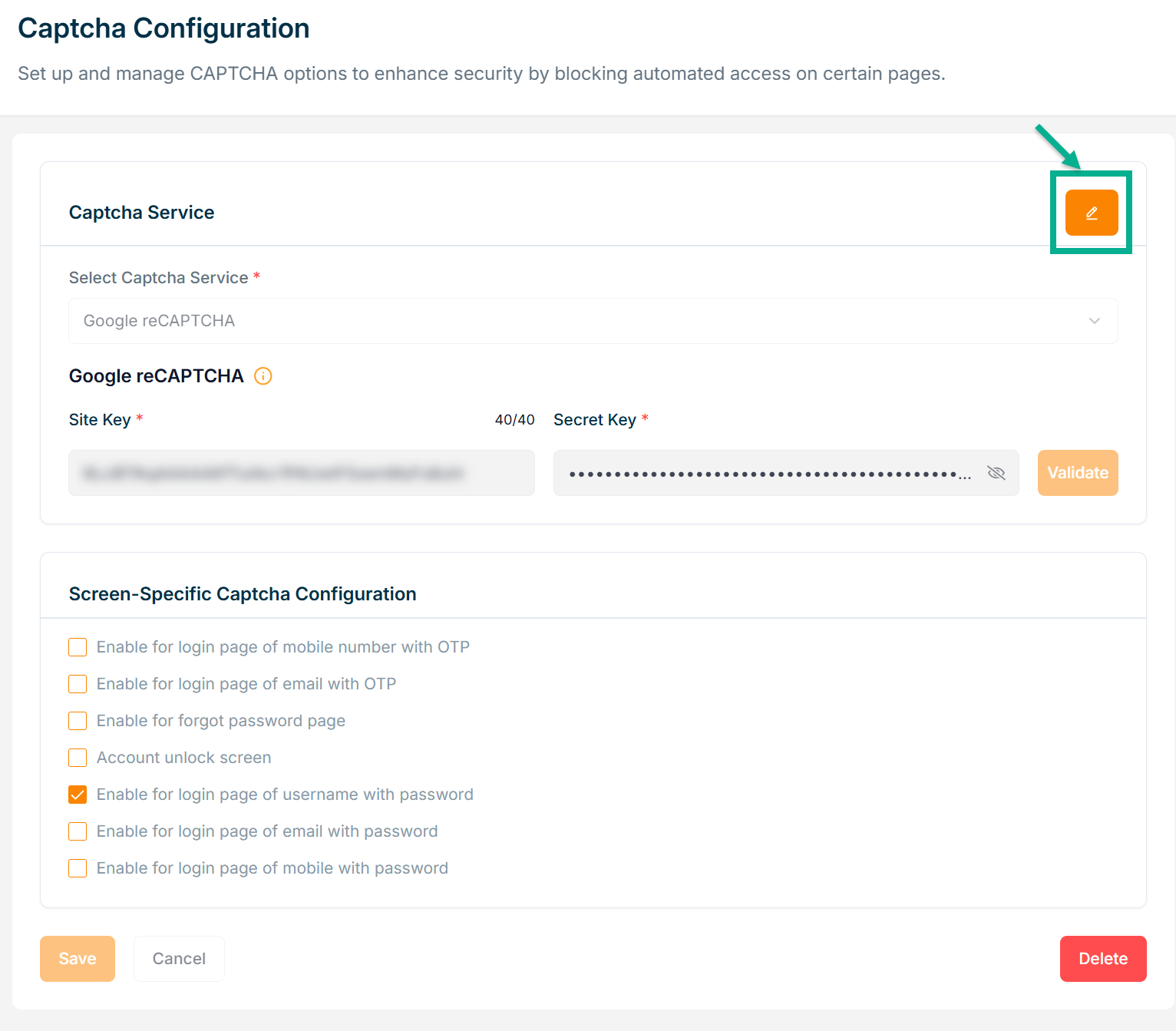
The Captcha Configuration screen appears as shown below.
-
Update the fields if required.
-
Check the reCAPTCHA checkbox.
-
Click Validate.
Upon validating, the confirmation message appears as shown below.
- Enable the checkbox for any Specific Screen if needed.
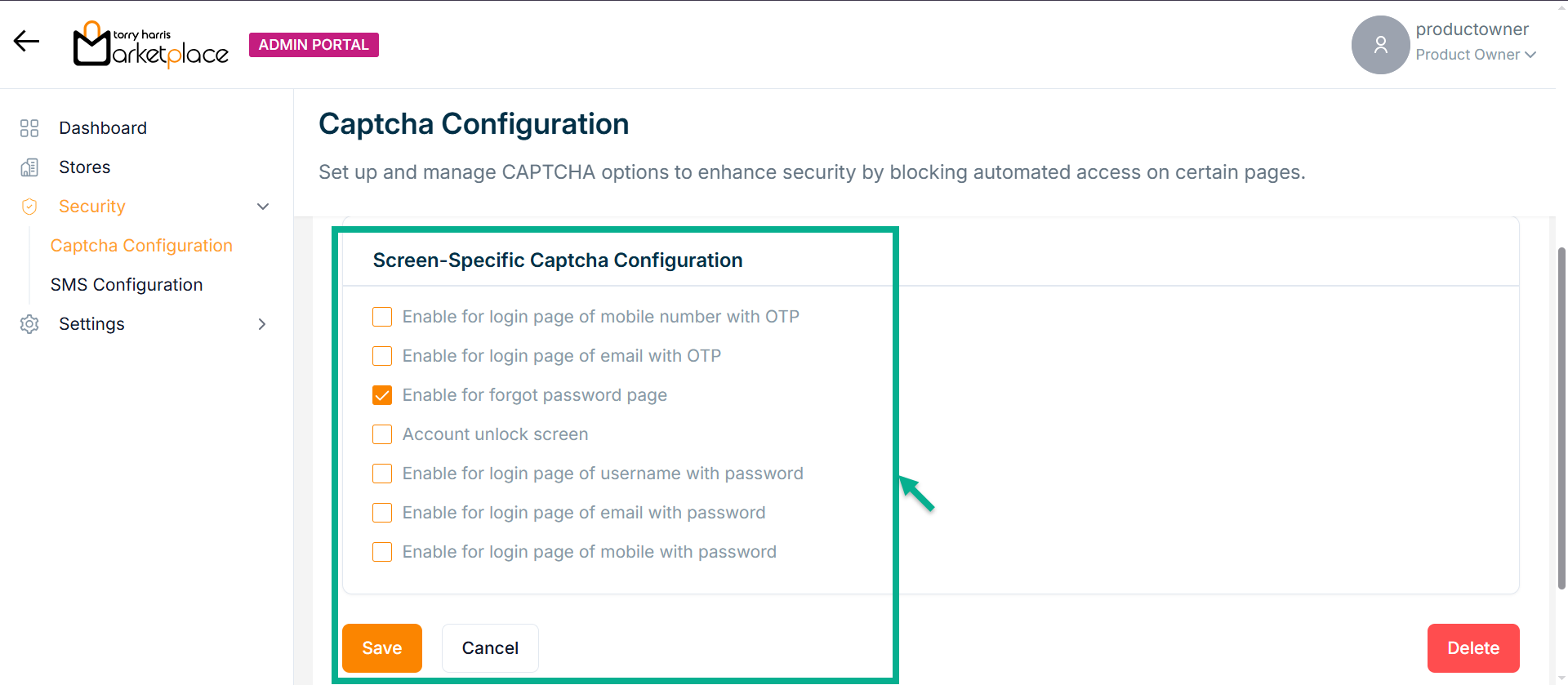
- Click Save.
Upon saving, the confirmation message appears as shown below.
Deleting Captcha
- Click Delete.
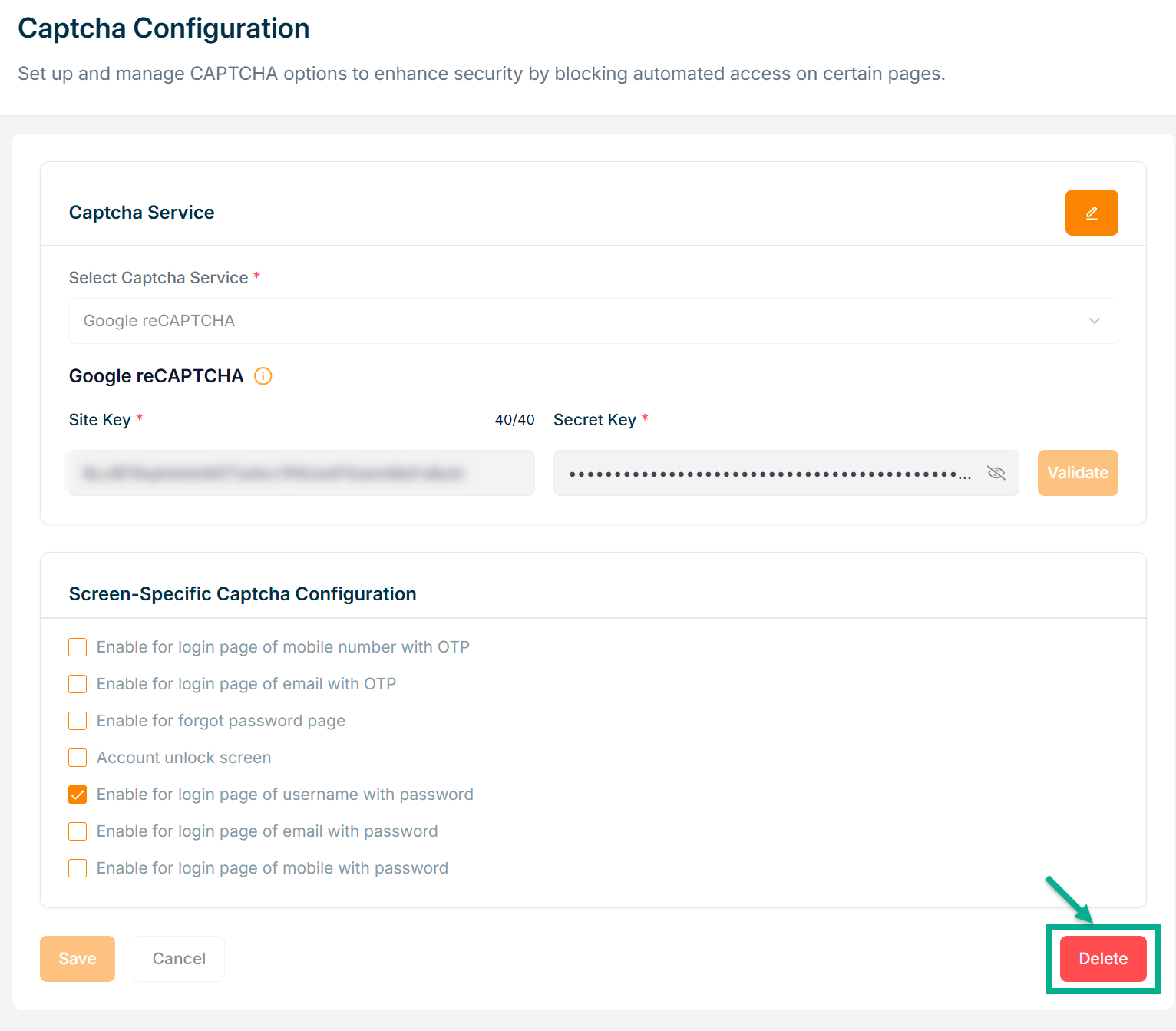
The Confirm Delete dialogue box appears as shown below.
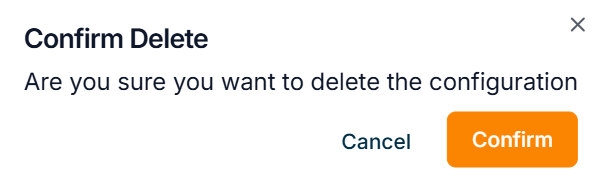
- Click Confirm.