Flows
A Flow is a visual sequence of API calls, built using default nodes in the Journey Engine, where each event triggers a specific action.
Creating Folder
- Click on New Folder.
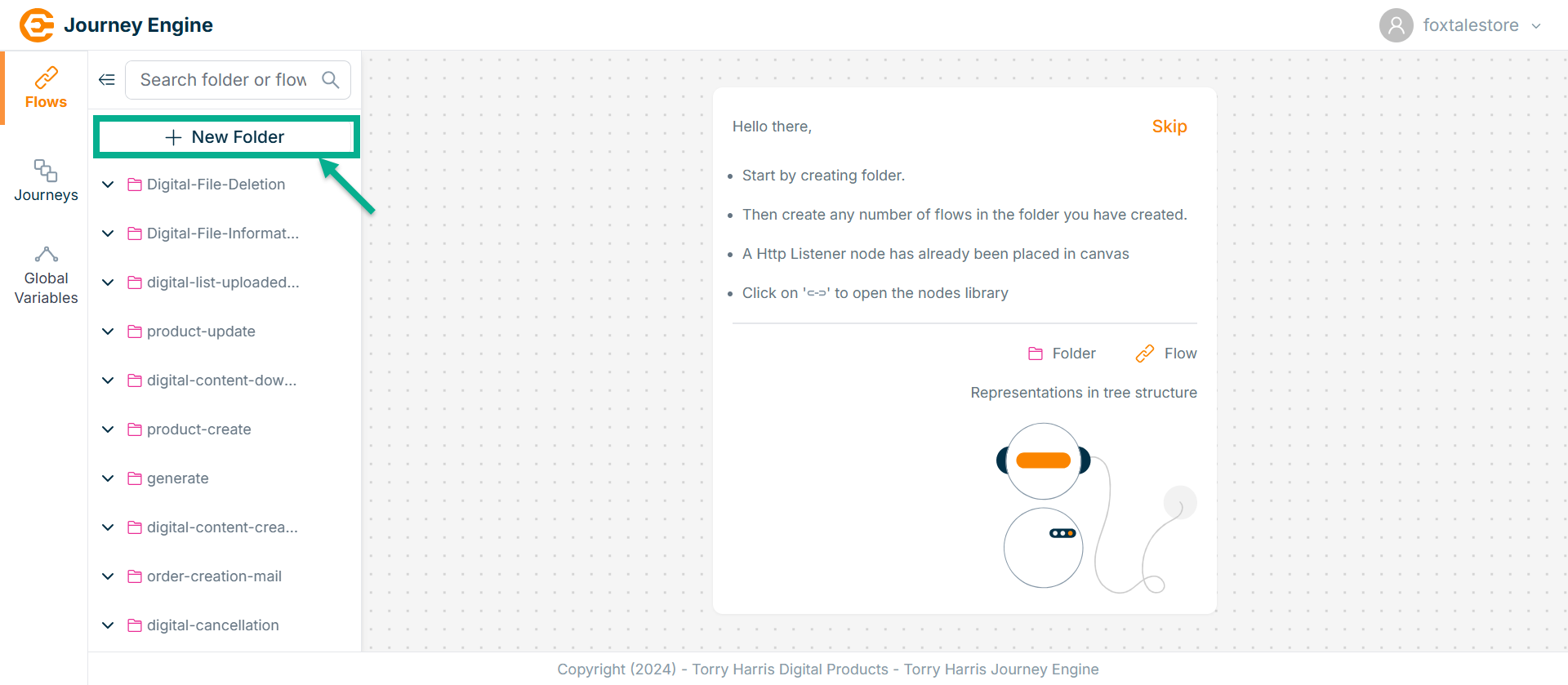
The New Folder dialogue box appears as shown below.
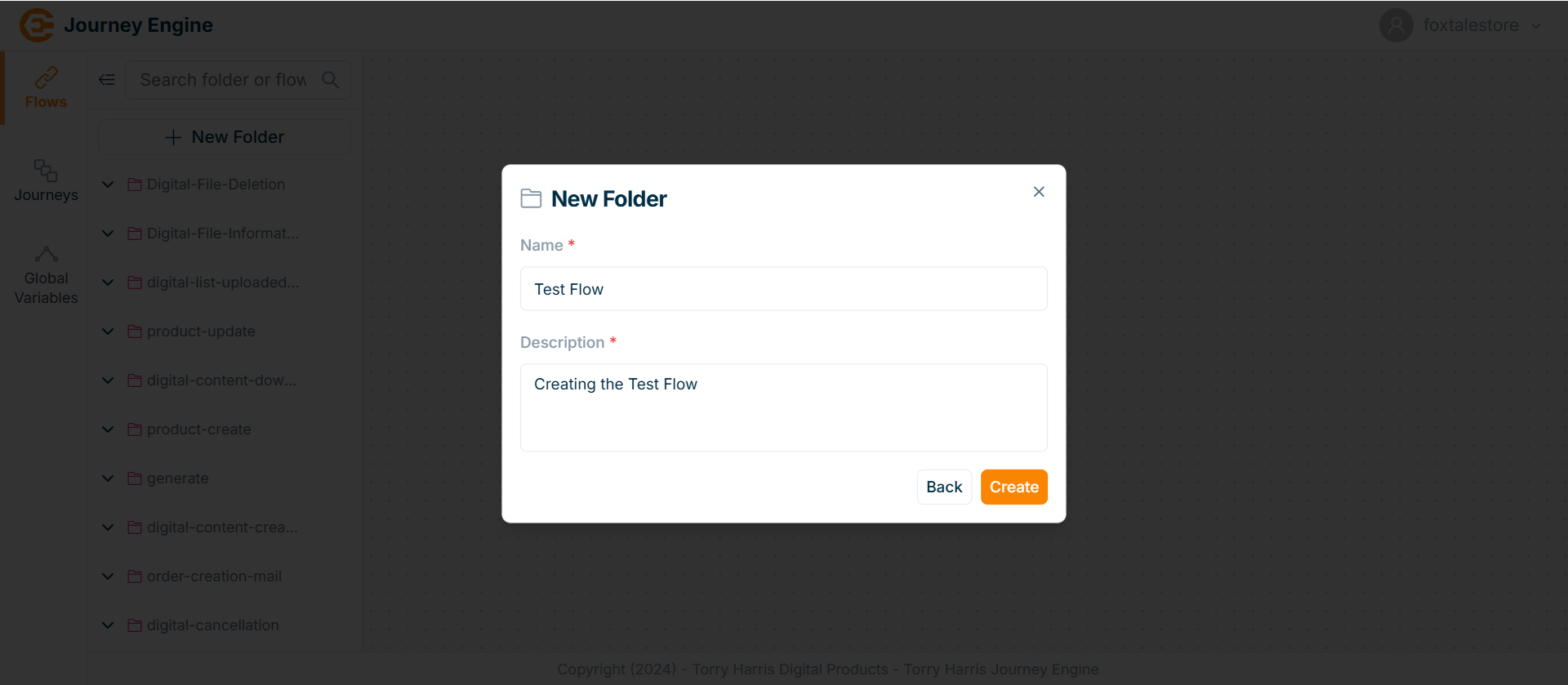
-
Enter the Name and Description.
-
Click Create.
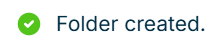
On creating, the confirmation message appears as shown below.
Updating Folder
- Hover upon the created Folder.
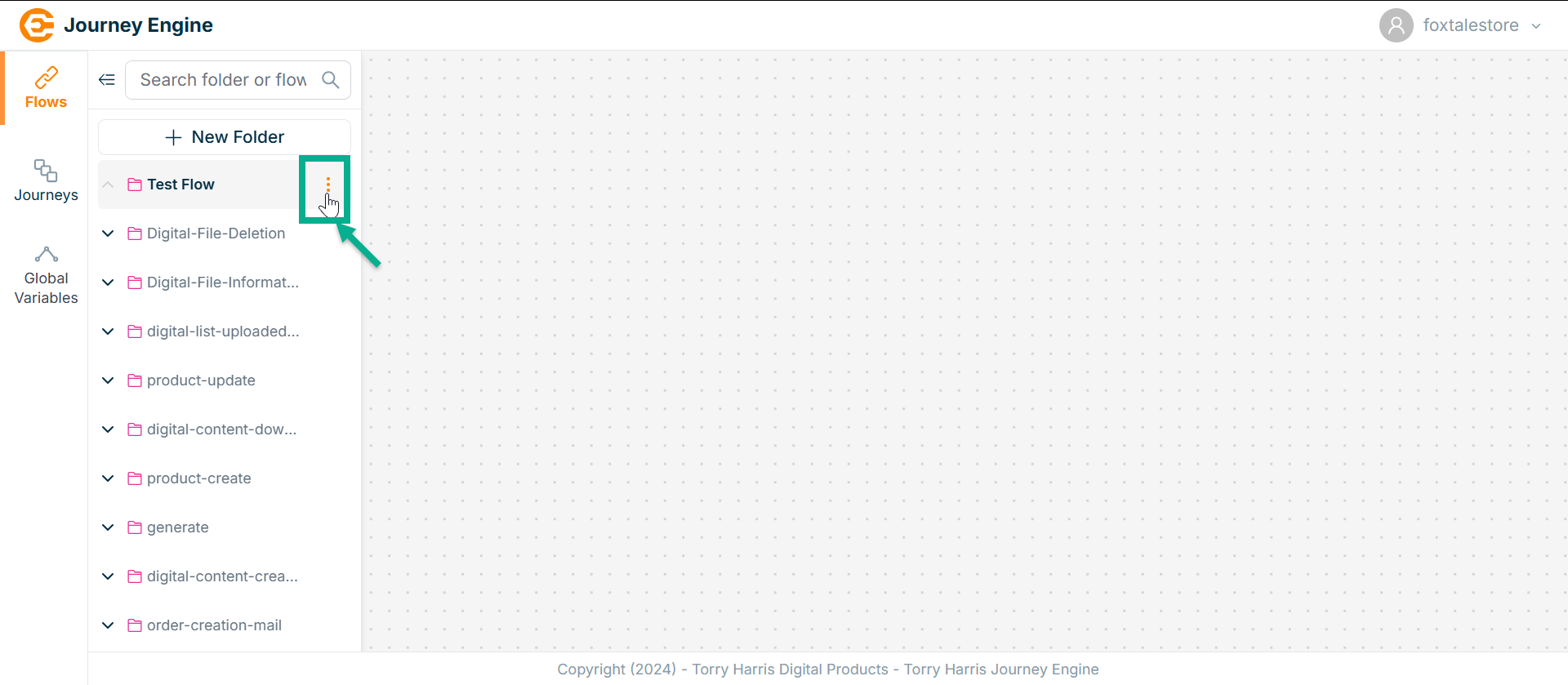
- Click on the Options icon.
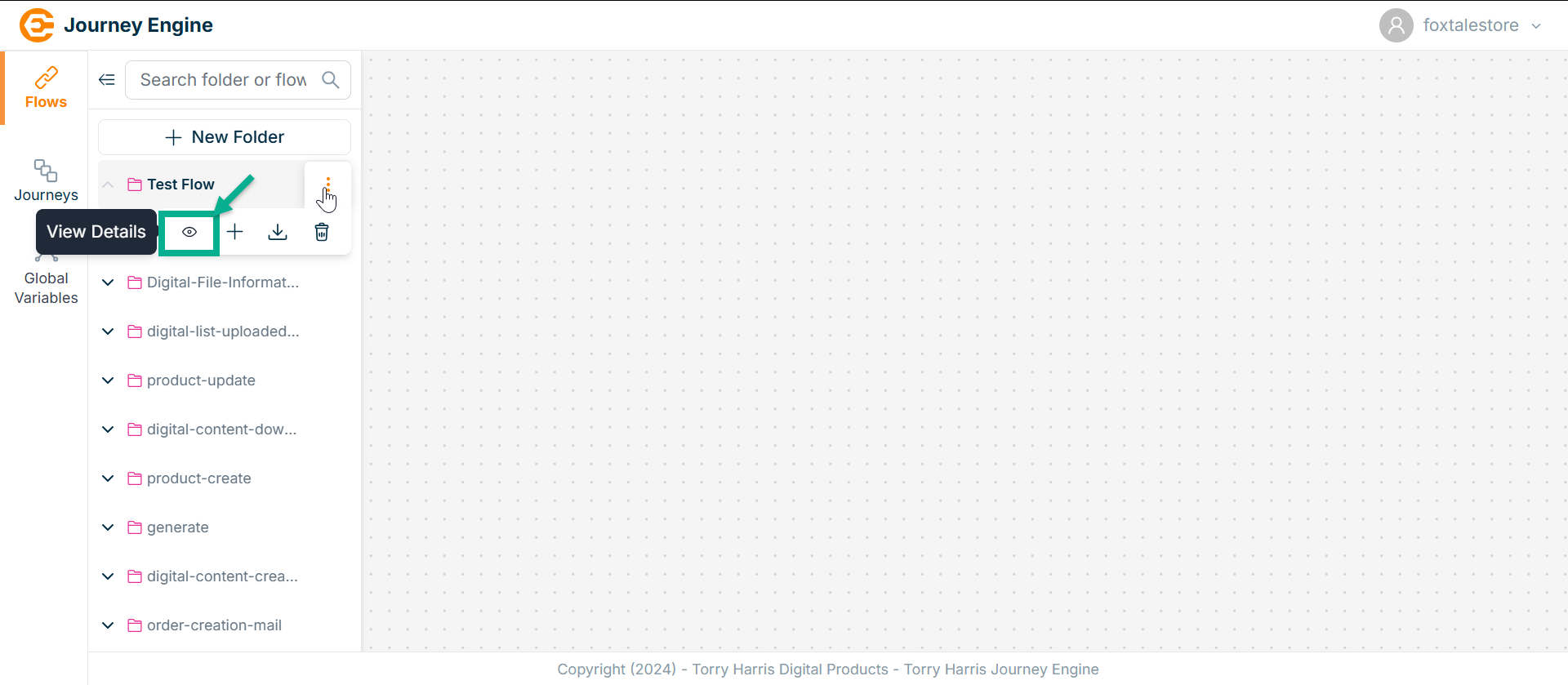
- Click on View Detials button.
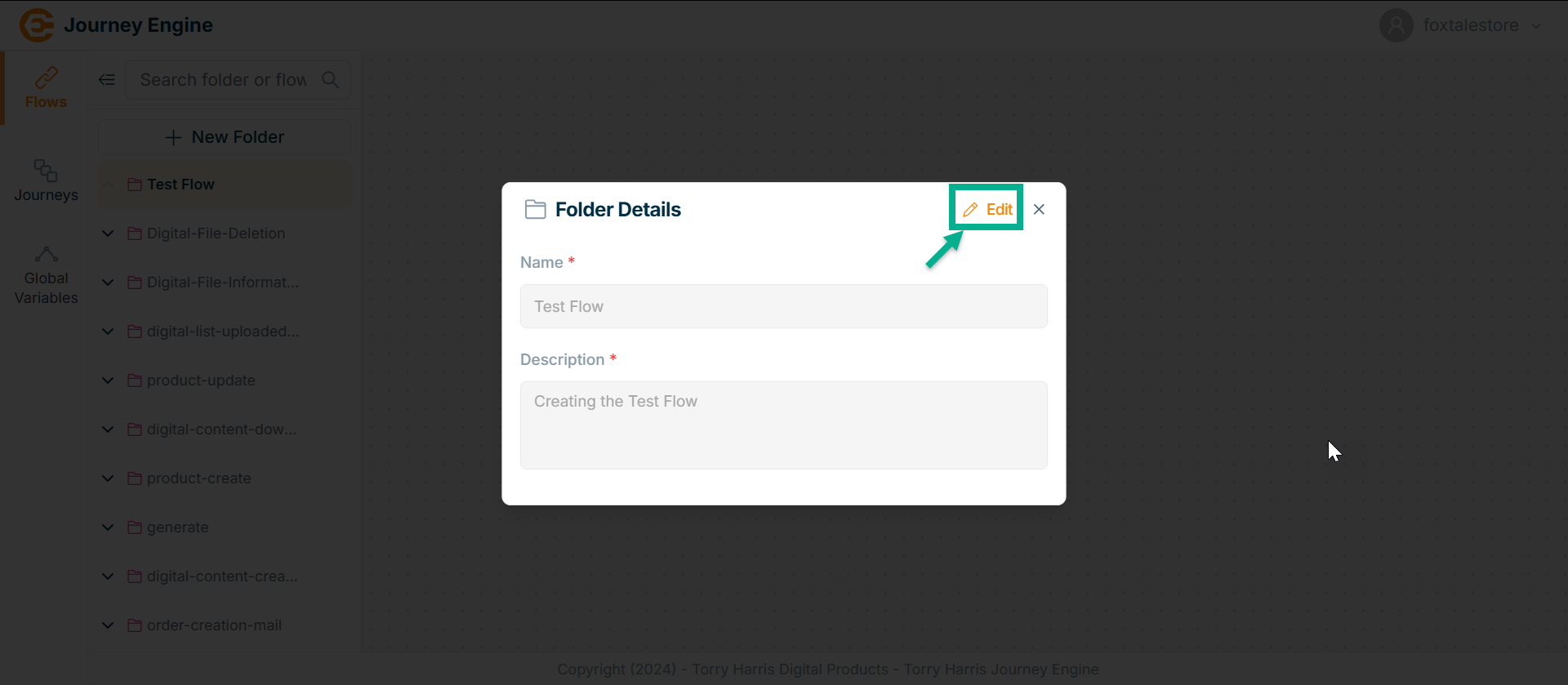
The screen appears as shown below.
-
Click on Edit.
-
Update the Name and Description.
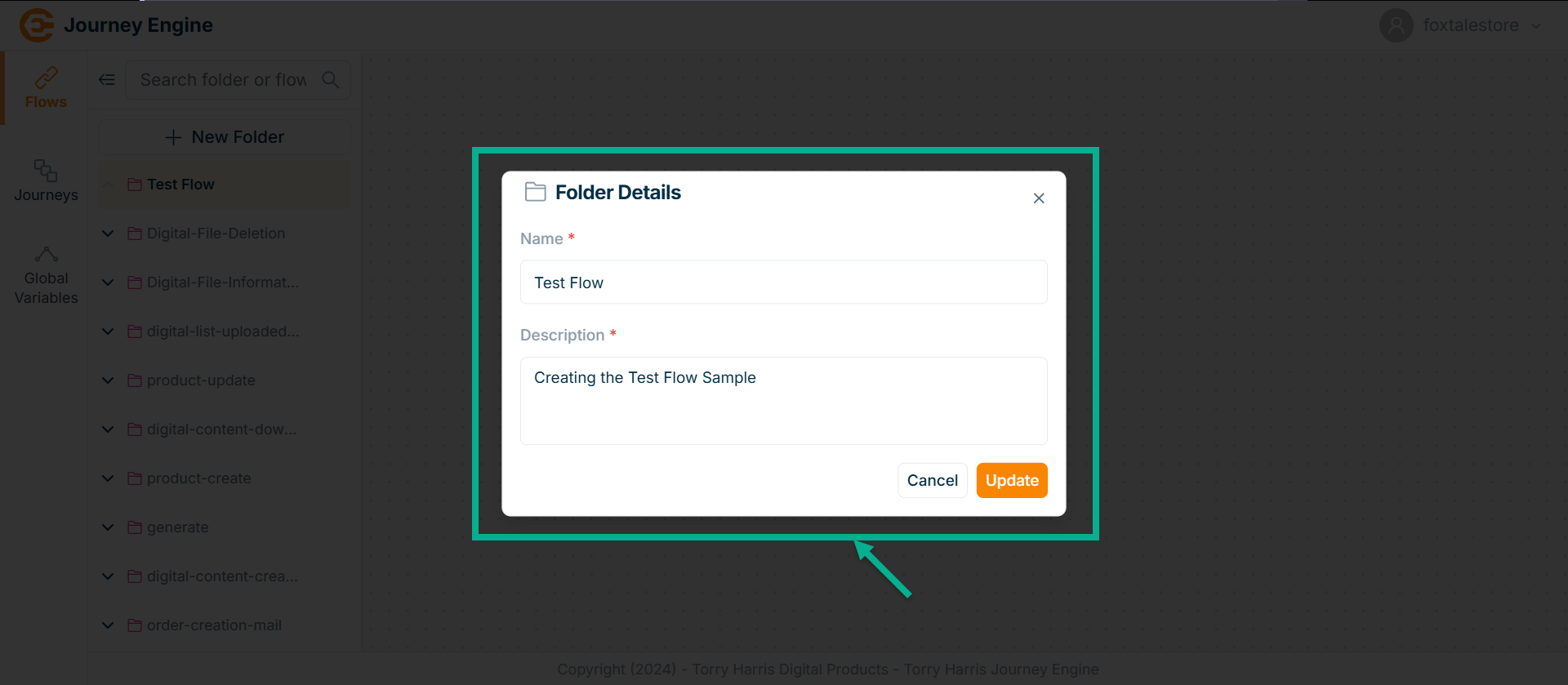
- Click on Update.
On updating, the confirmation message appears as shown below.

Deleting Folder
A folder cannot be deleted if it contains any flows.
- Hover upon the created Folder.
- Click on the Options icon.
The Zoom Controls allow you to zoom out, zoom in, or adjust the canvas view using the minus button, slider, and plus button respectively.
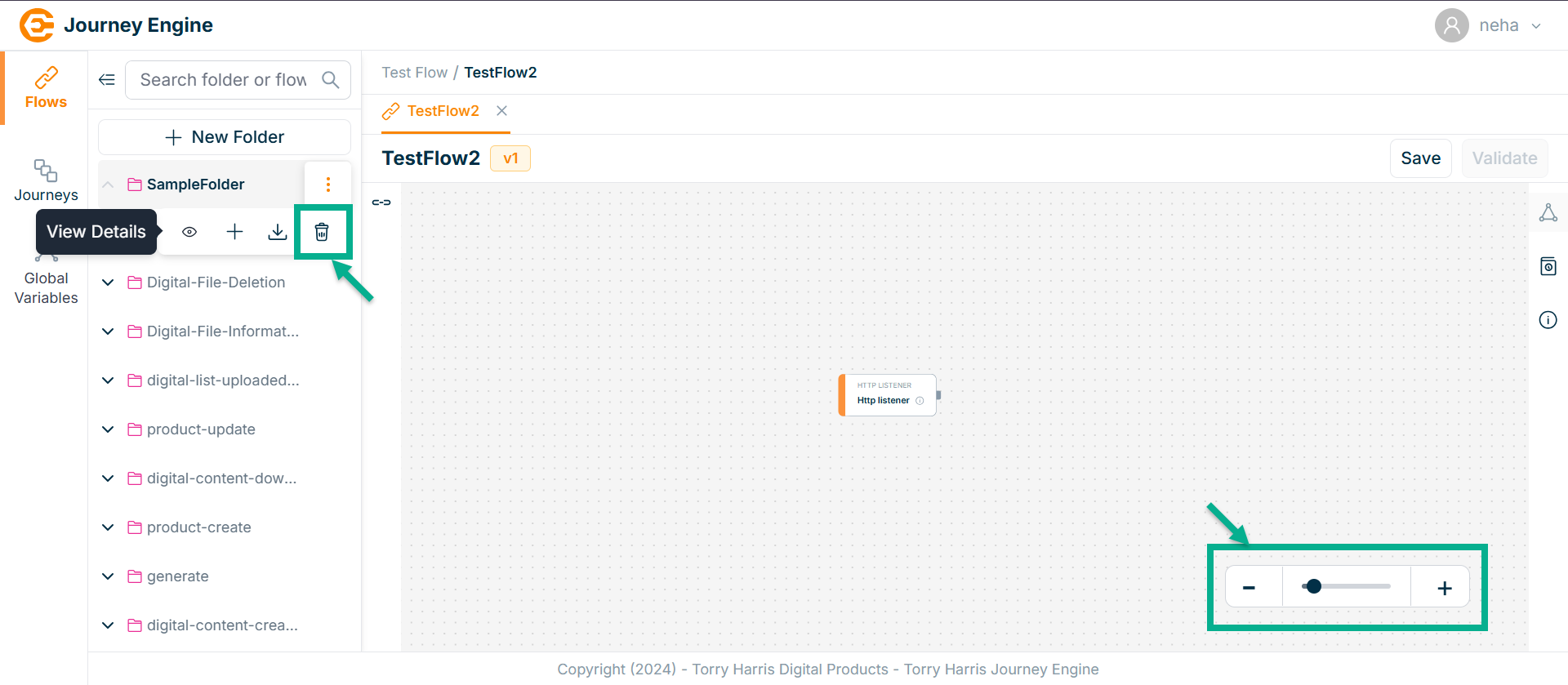
- Click on Delete Folder button.
The Confirm Delete screen appears as shown below.
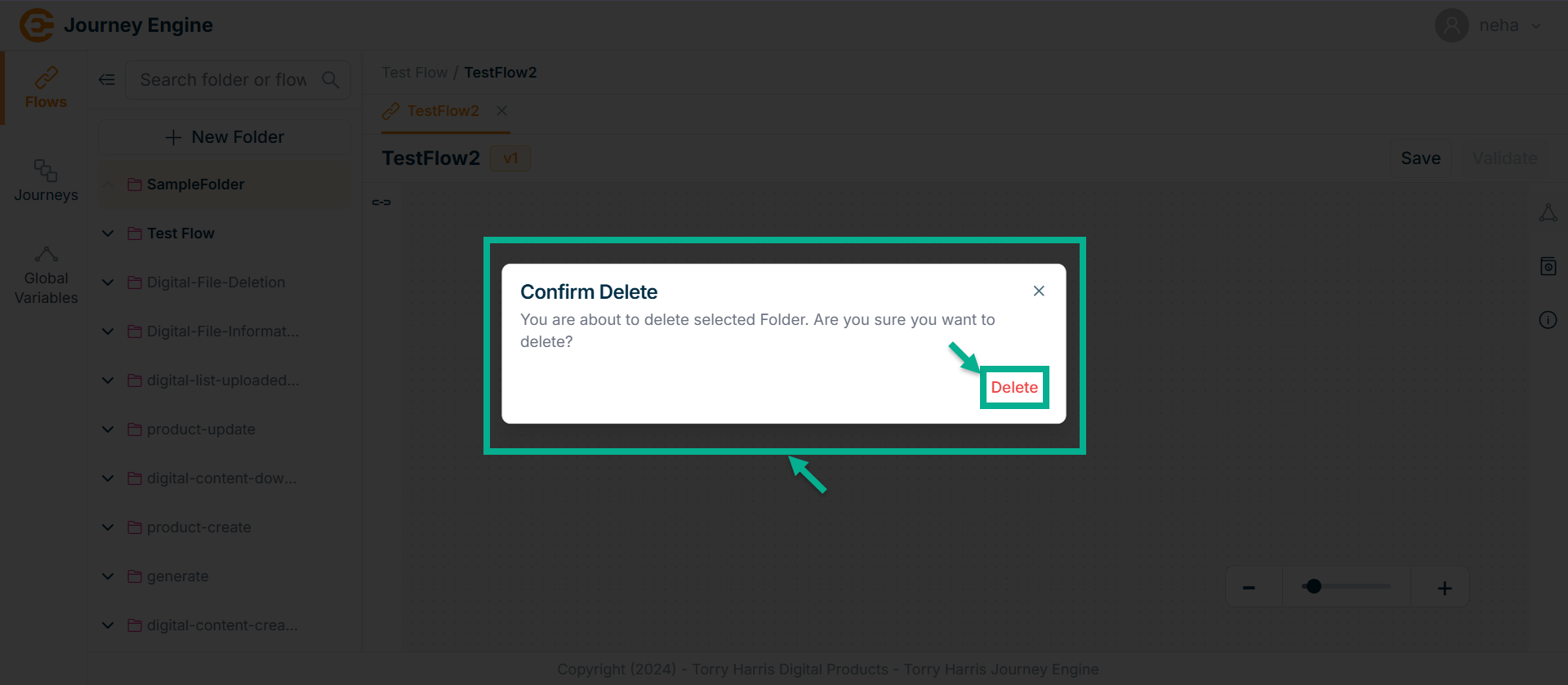
- Click Delete.
On deleting, the confirmation message appears as shown below.

Creating Flow
- Hover upon the created Folder.
- Click on the Options icon.
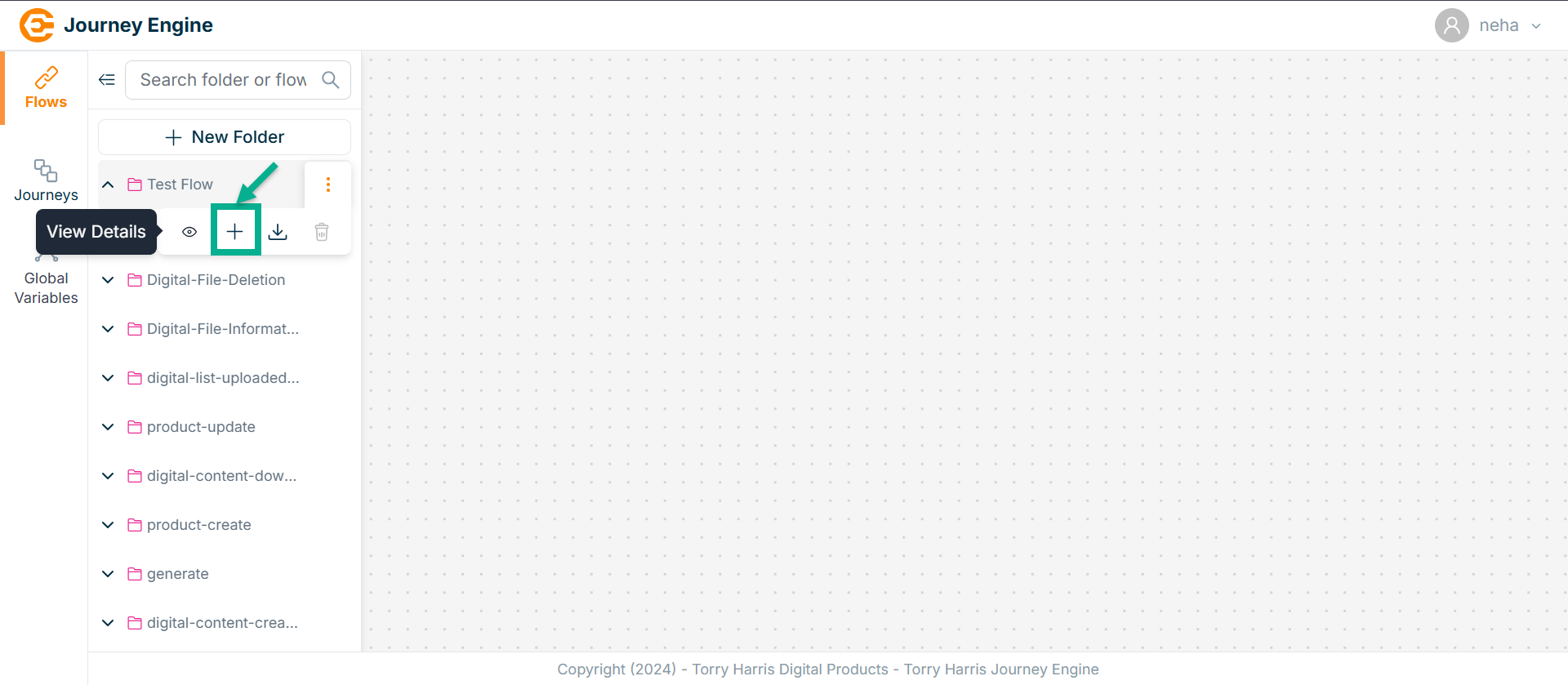
- Click on New Flow button.
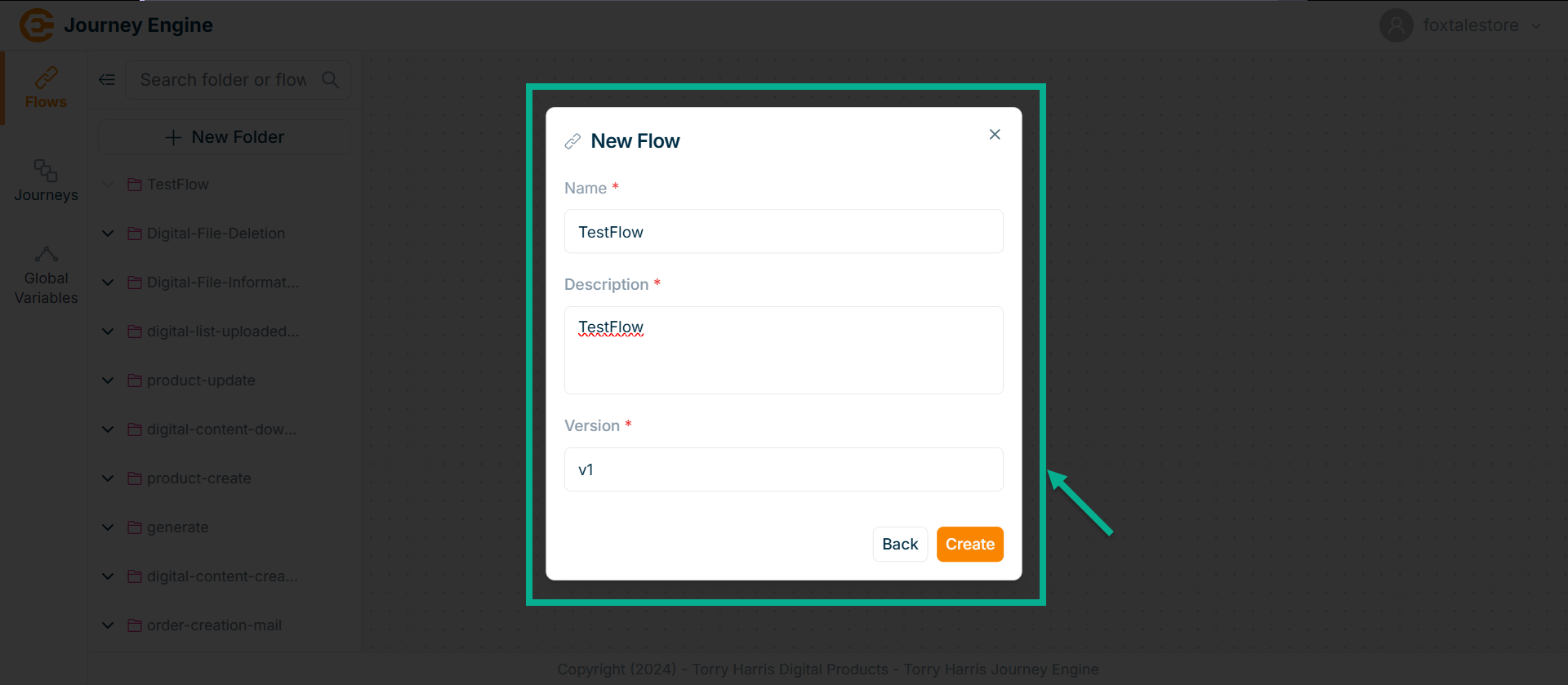
The screen appears as shown below.
-
Enter Name, Description and Version.
-
Click on Create.
On creating, the screen appears as shown below with the confirmation message.
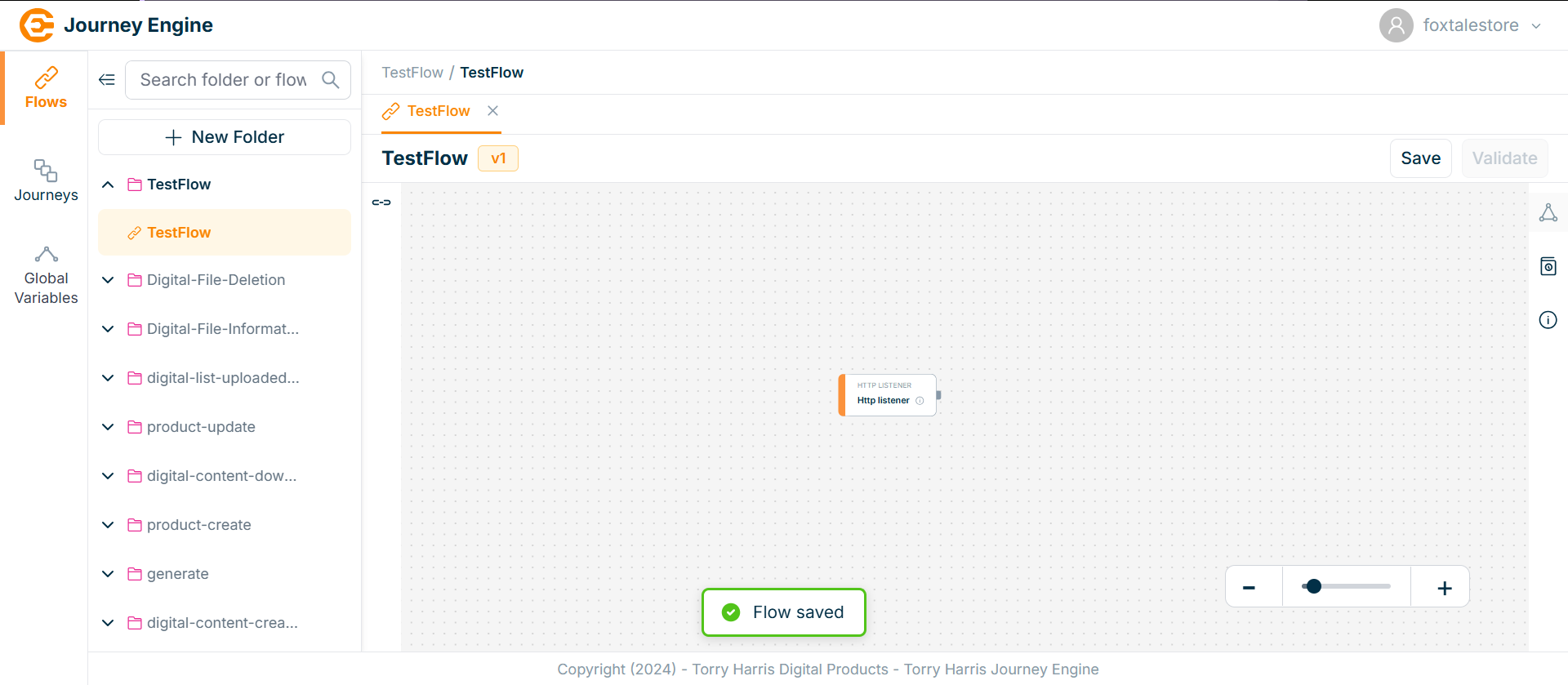
Once the flow is created, HTTP-Listener node will appear in the canvas by default.
Flow Version History
- Click on Version History icon.
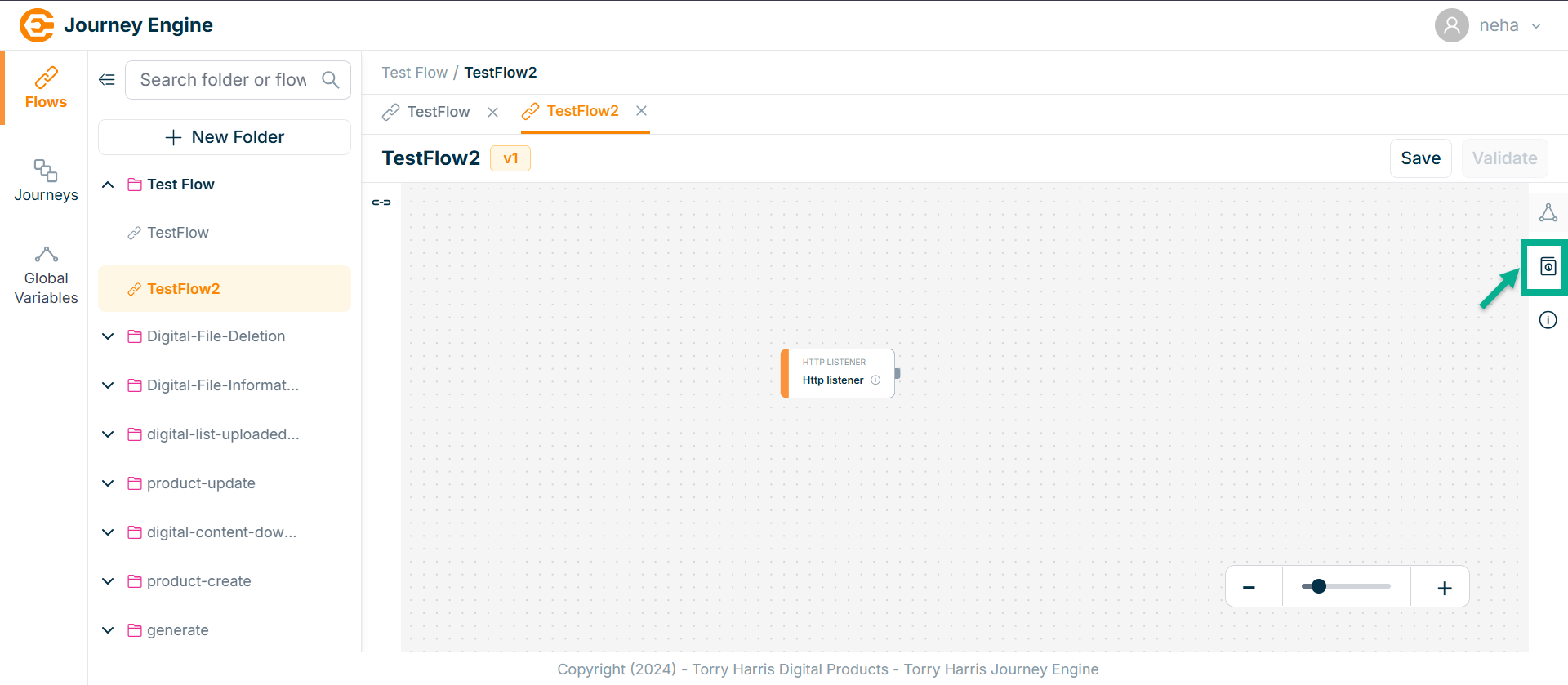
The Version History popup screen appears as shown below
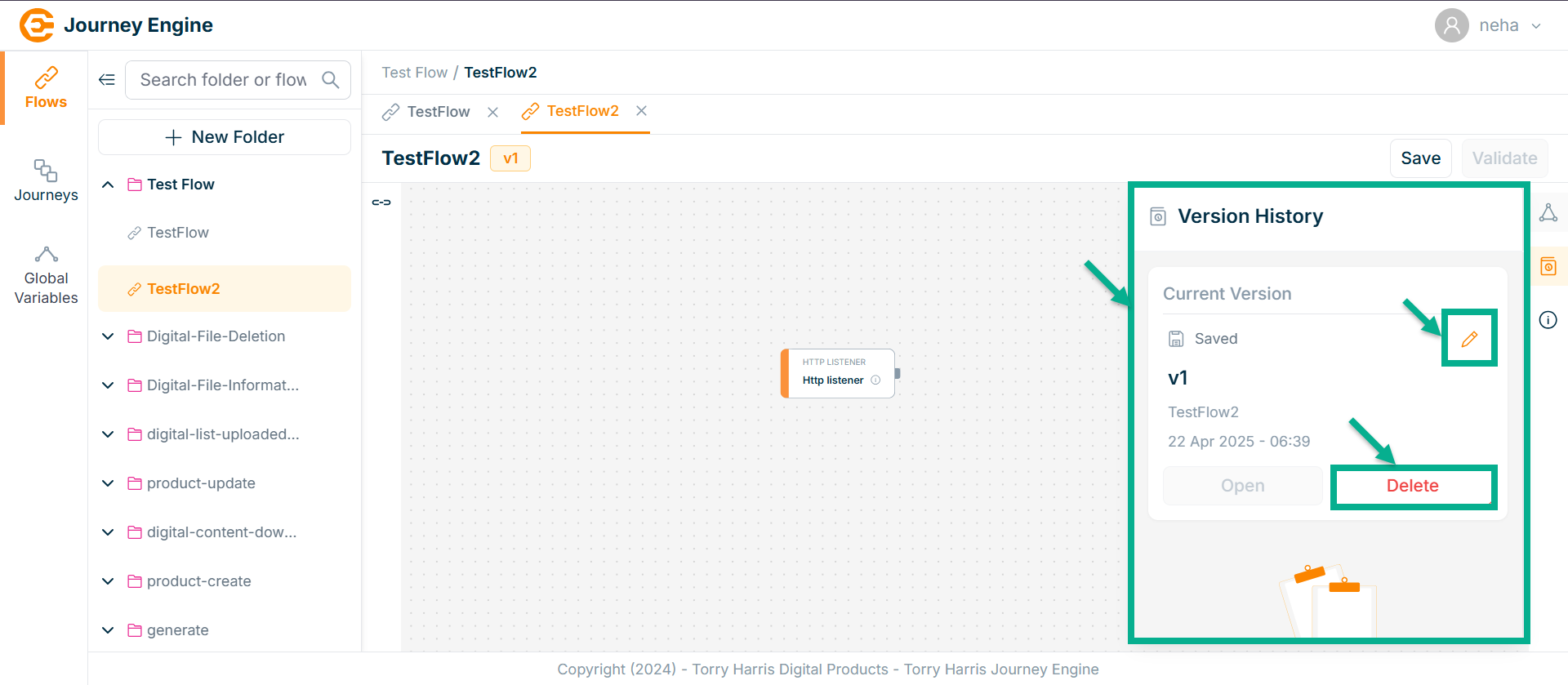
To Edit the Flow Version, click edit button in Version History.
To Delete the Flow Version, click delete button in Version History.
Editing Flow Info
- Click on Flow Info icon.
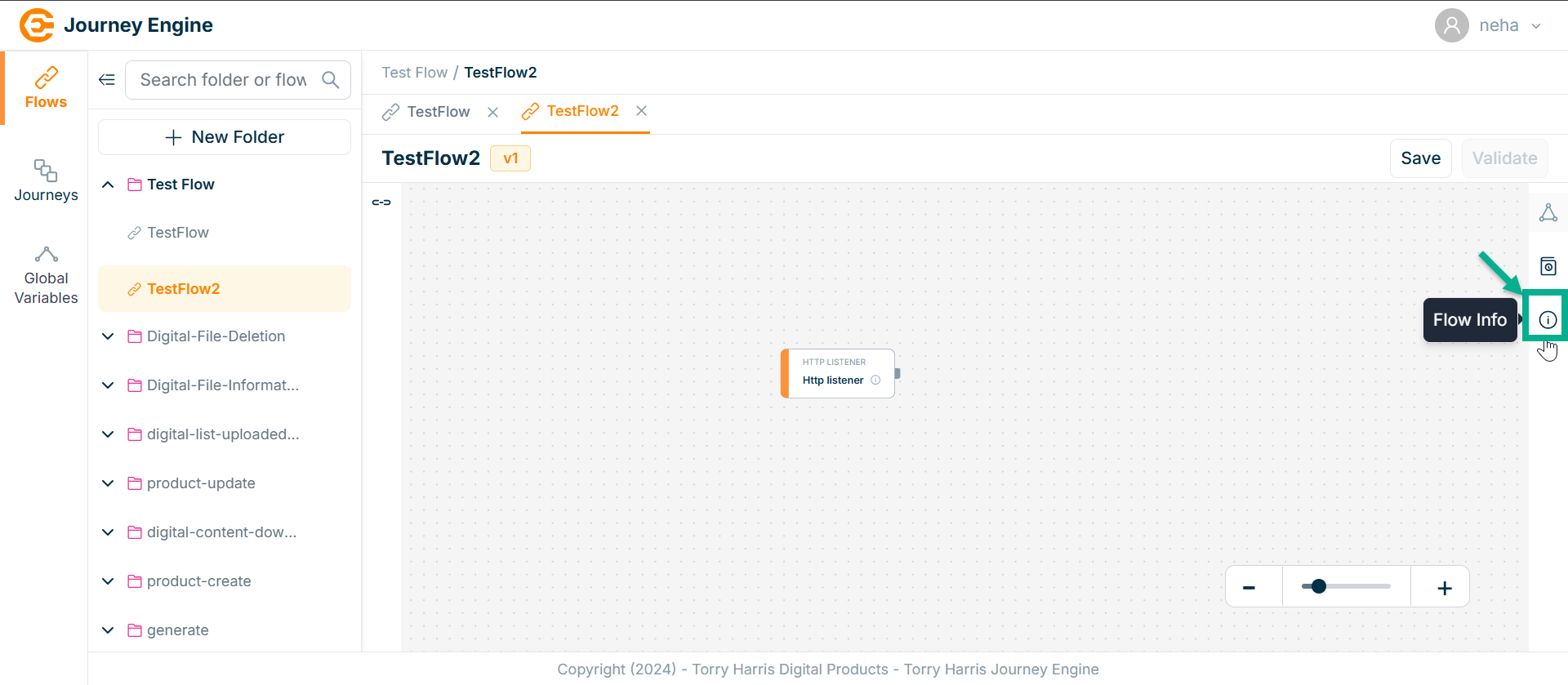
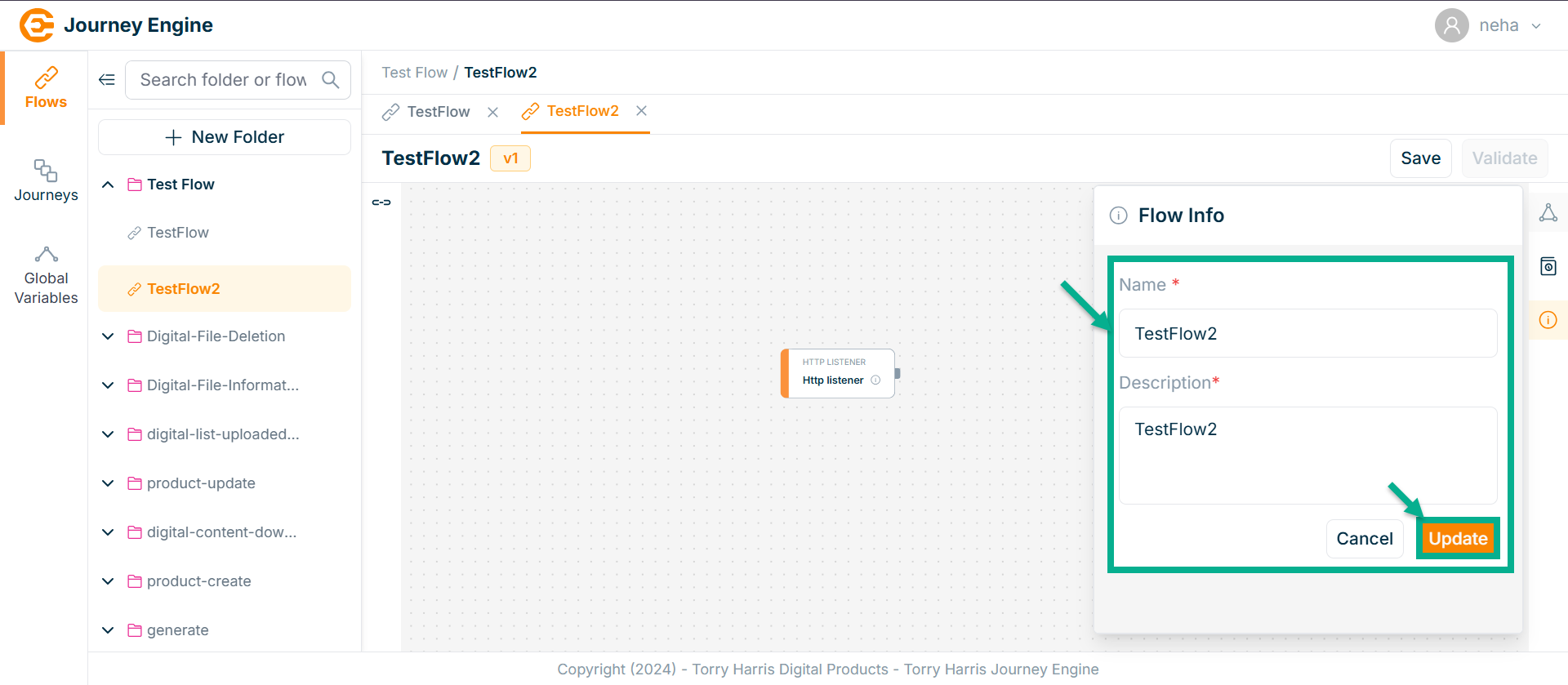
The Flow Info screen appears as shown below
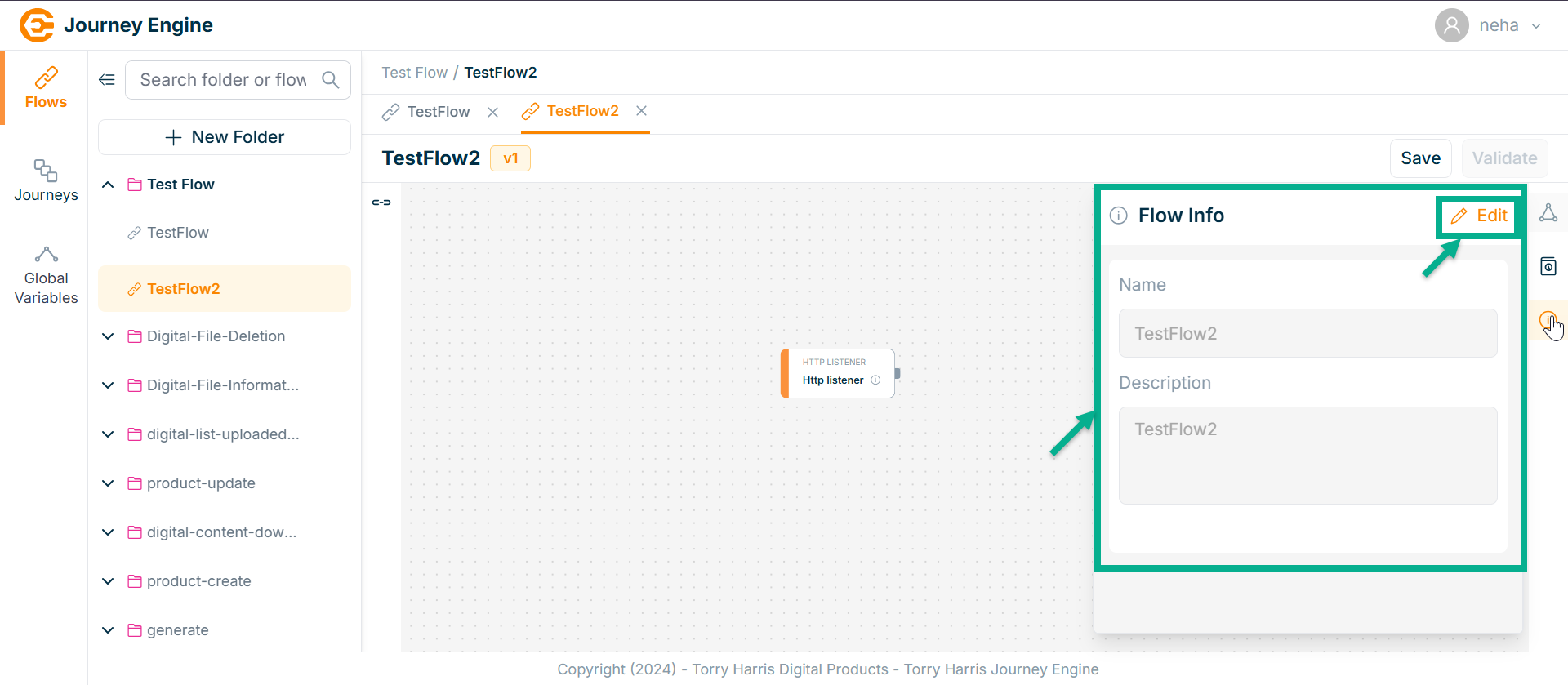
- Click on Edit.
-
Enter Name and Description.
-
Click Update.
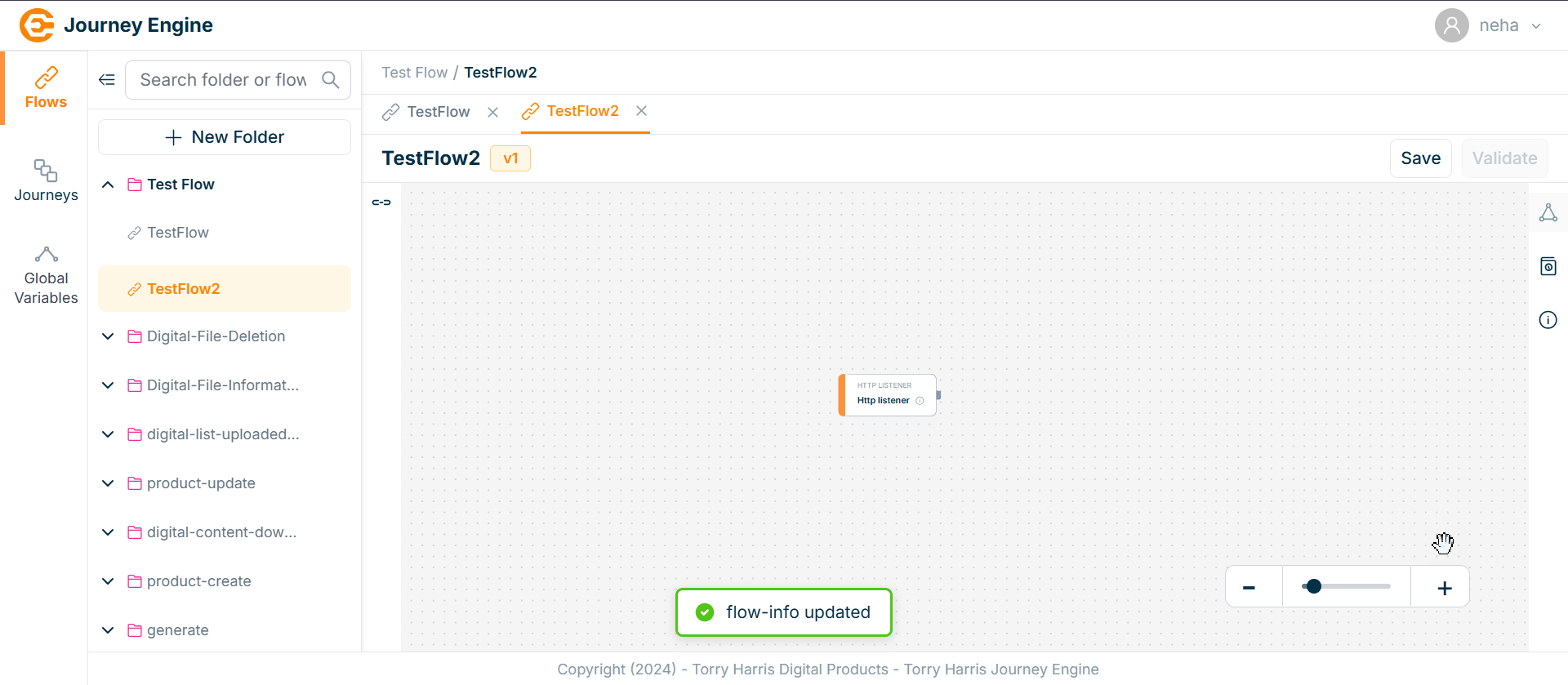
On updating, the screen appears as shown below with the confirmation message.
Exporting Flow
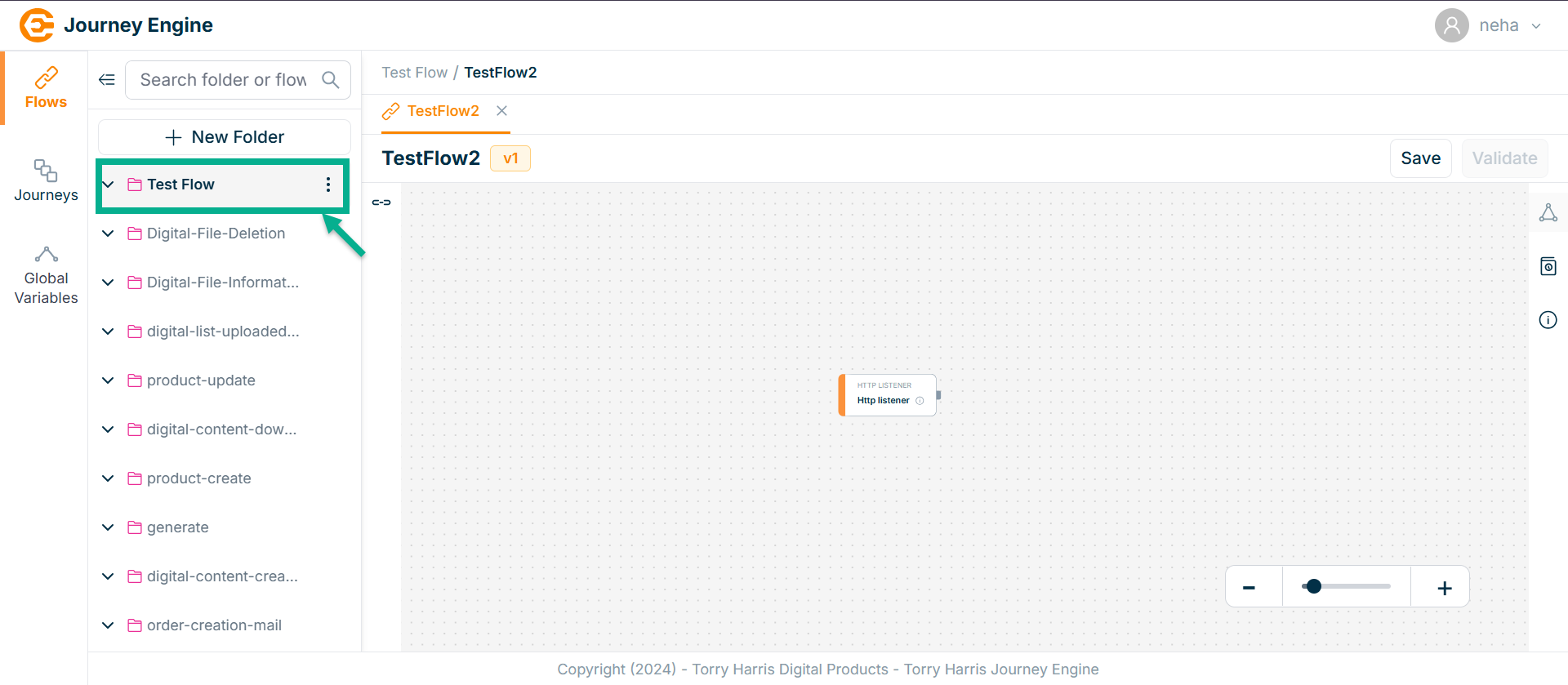
- Click on Folders dropdown icon.
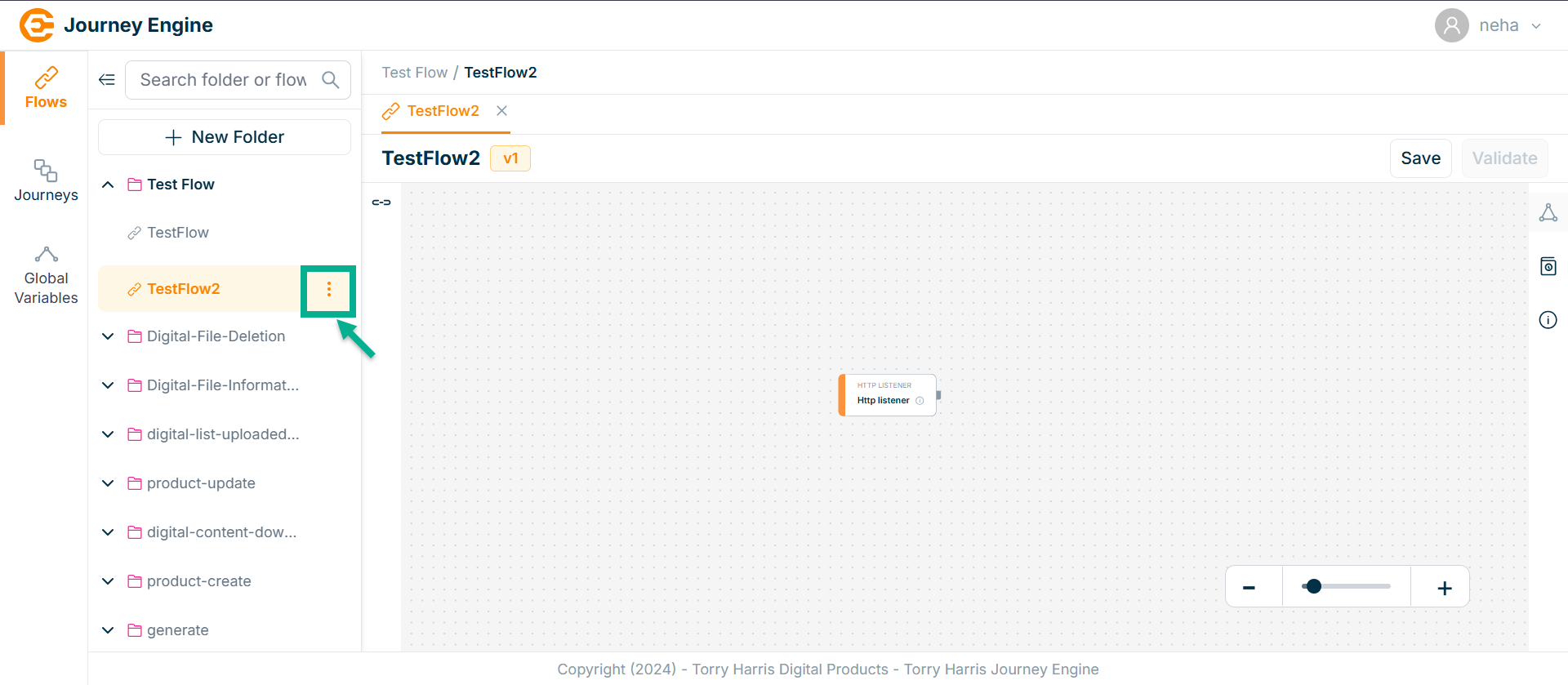
- Click on Options icon
- Click on Export Flow icon.
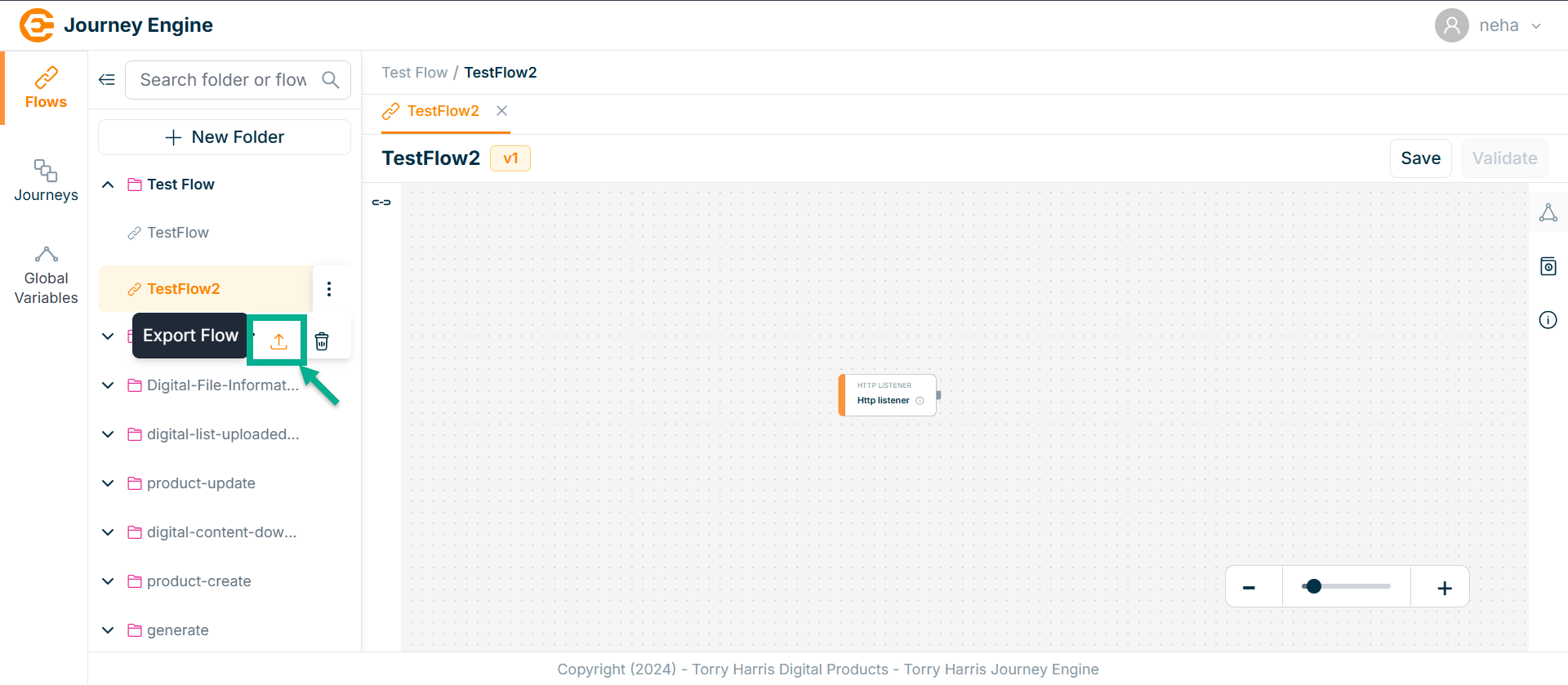
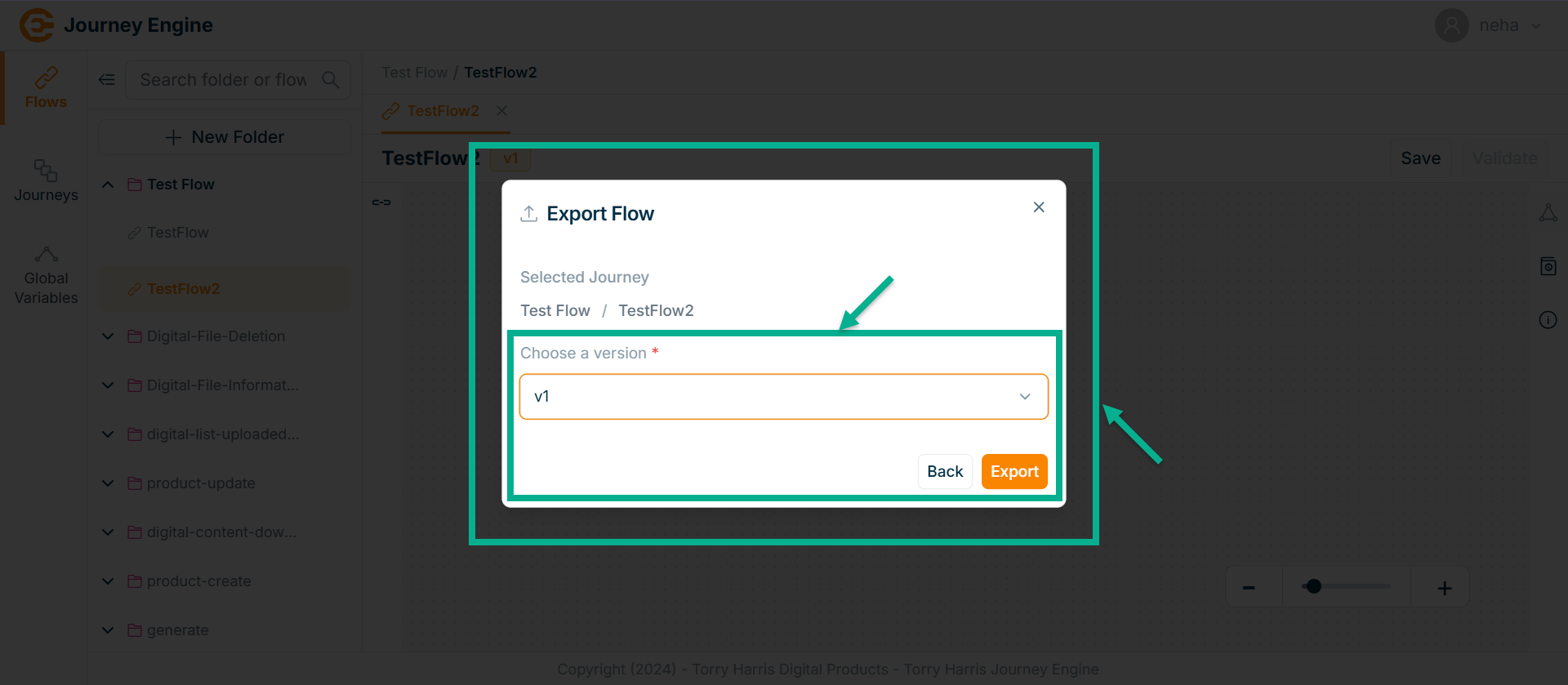
The Export Flow screen appears as shown below
-
Choose a version from the dropdown.
-
Click on Export.
On exporting, the confirmation message appears as shown below.

Importing Flow
- Hover upon the created Folder.
- Click on the Options icon.
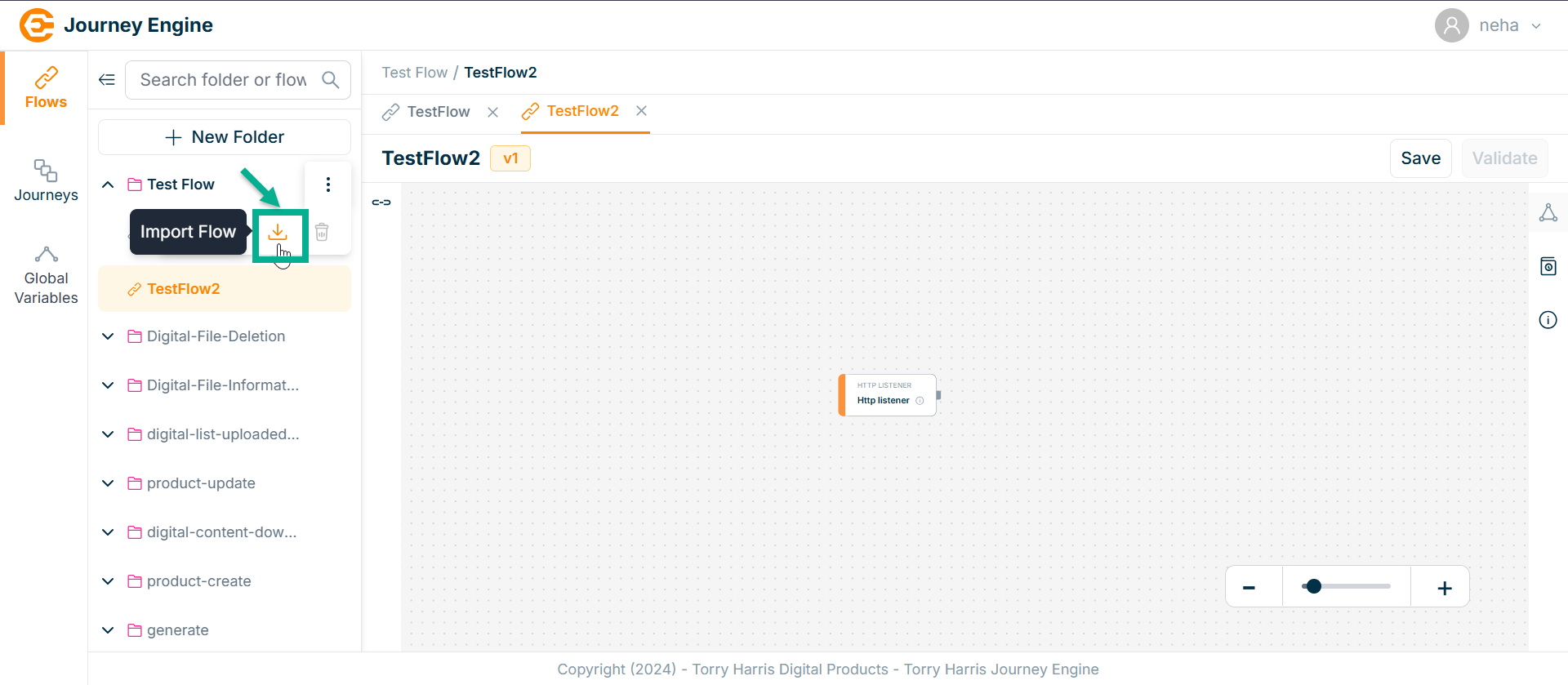
- Click on Import Flow button.
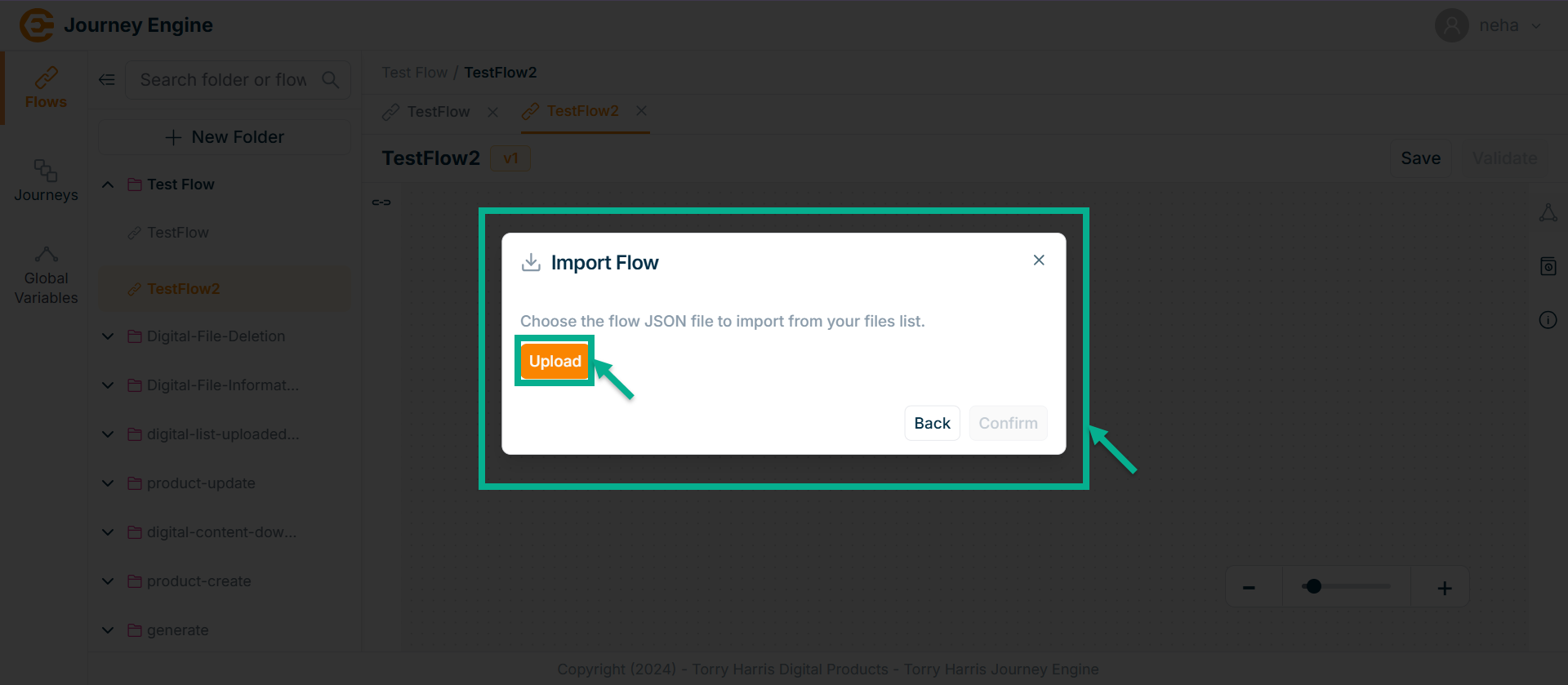
The Import Flow screen appears as shown below.
-
Click on Upload.
-
Upload the json file from the local.
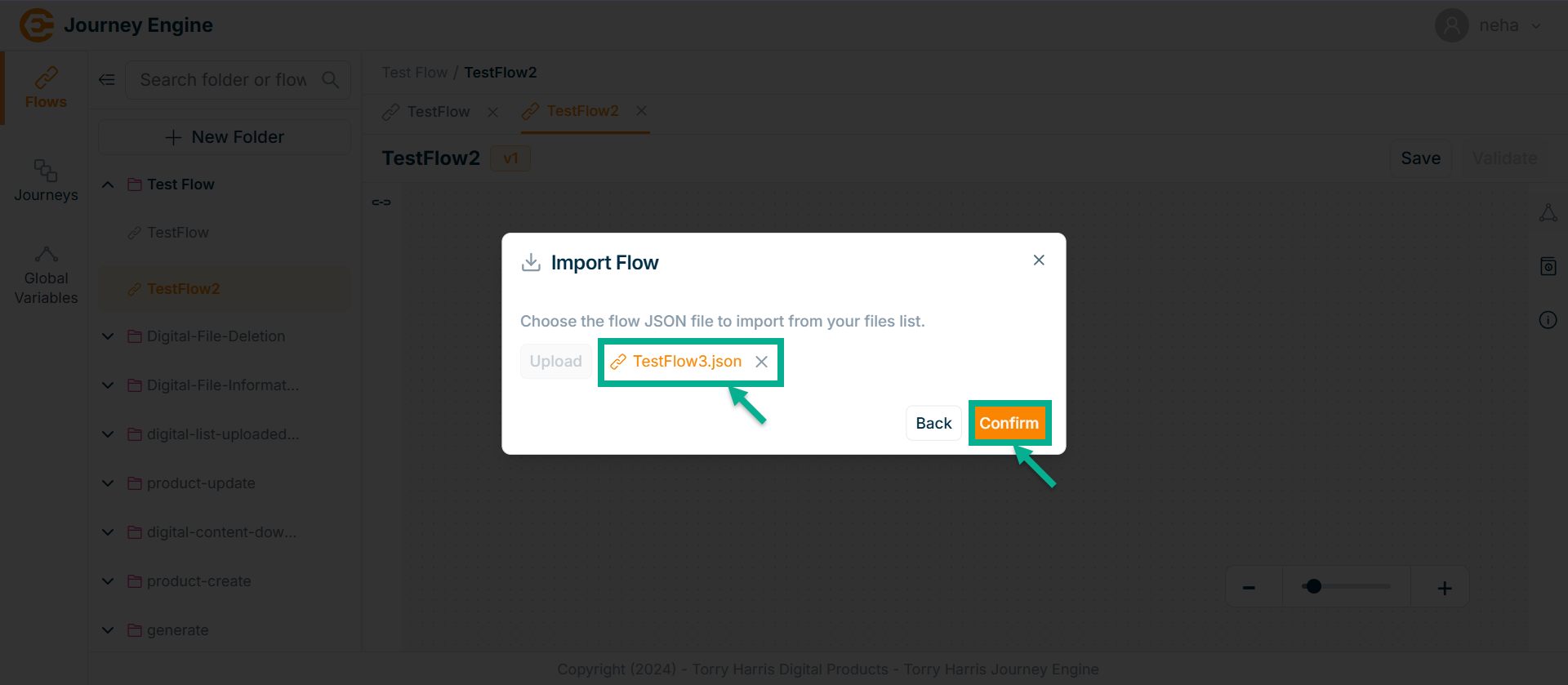
- Click on Confirm.
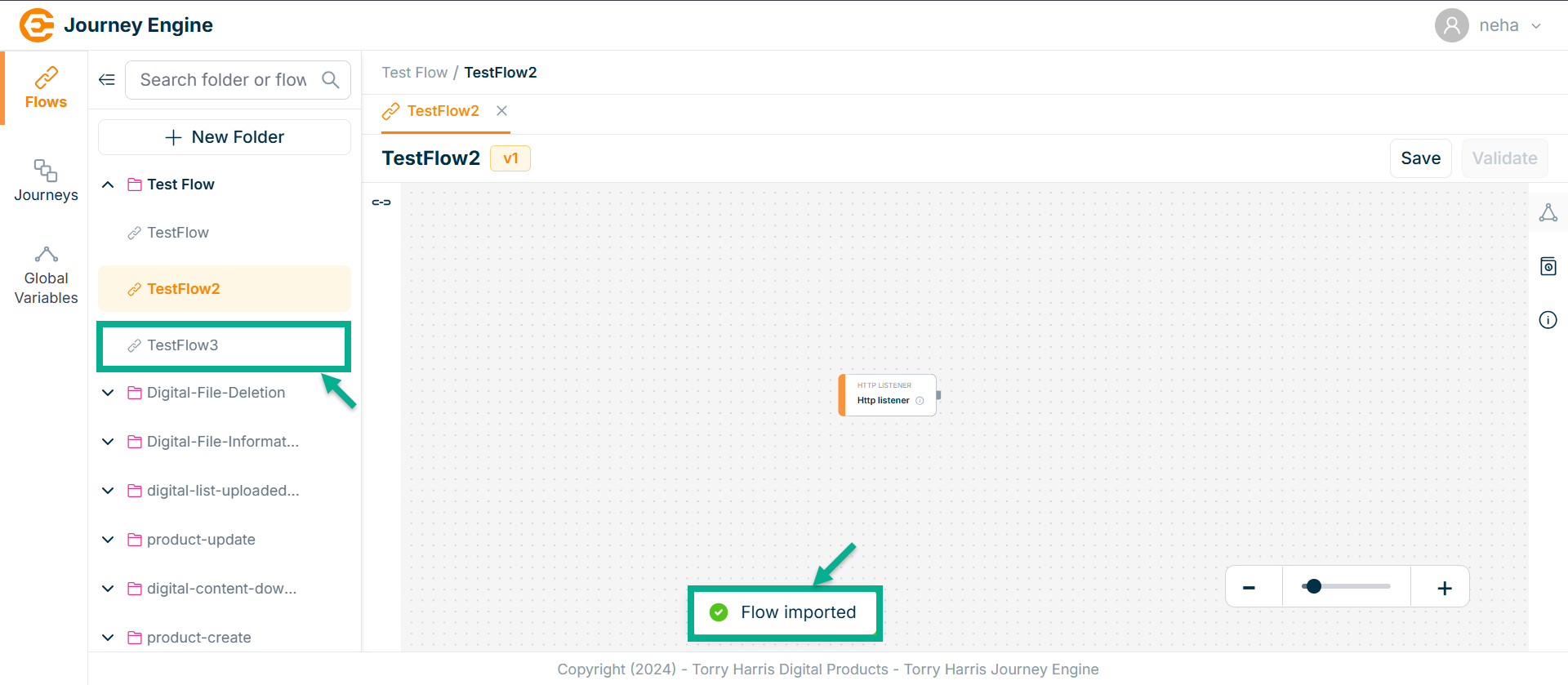
On confirming, the screen appears as shown below with the confirmation message and imported json file.
Deleting Flow
A flow version cannot be deleted while it is in the deployed state.
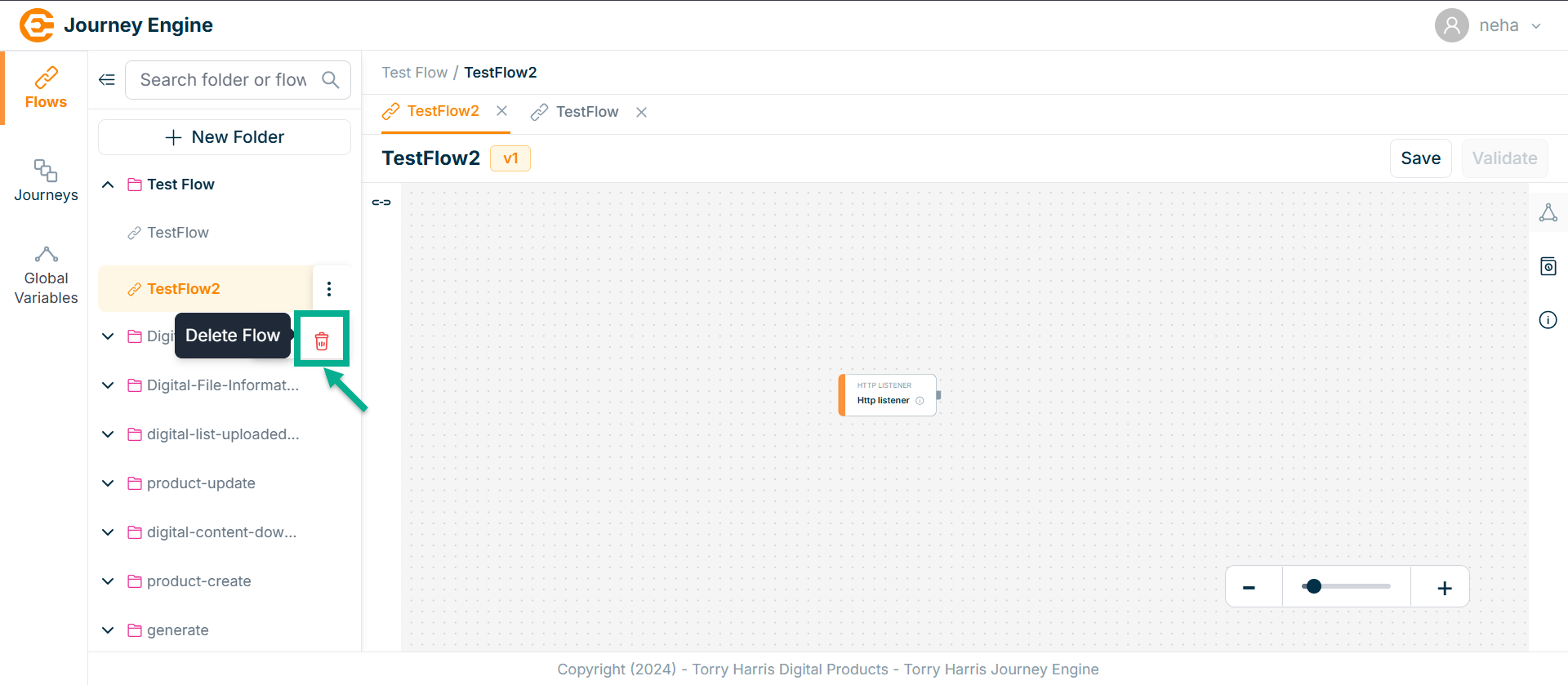
- Click on Folders dropdown icon.
- Click on Options icon
- Click on Delete icon.
The Confirm Delete screen appears as shown below
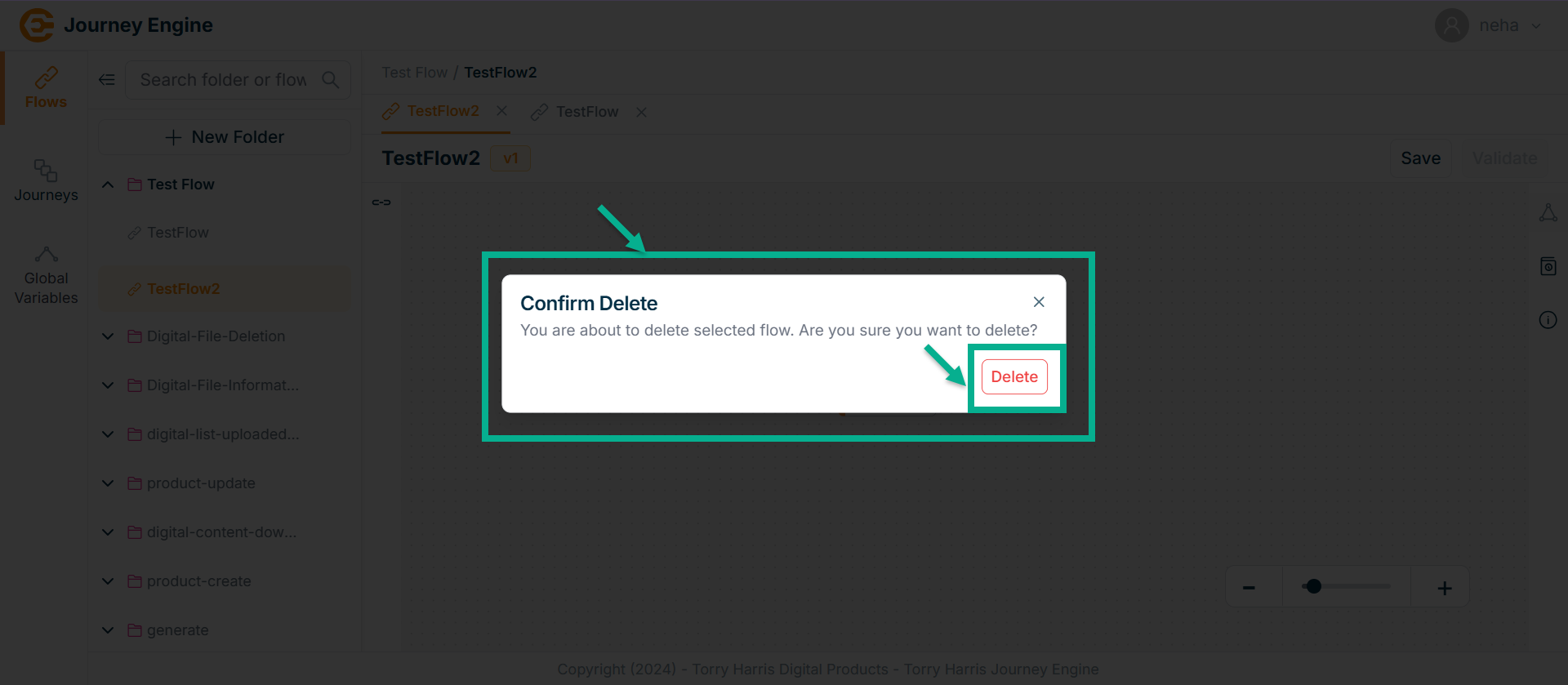
- Click Delete.
On deleting, the confirmation message appears as shown below.